
BREACH NOTIFICATIONS
How to Define and Enable Breach Notification Alerts?
This guide explains how to configure and enable breach
notification alerts when managers or admins are not
receiving breach notification emails.
Review the Breach Notification Issue
Follow these steps if breach notifications are not being
received by Managers or Admins.
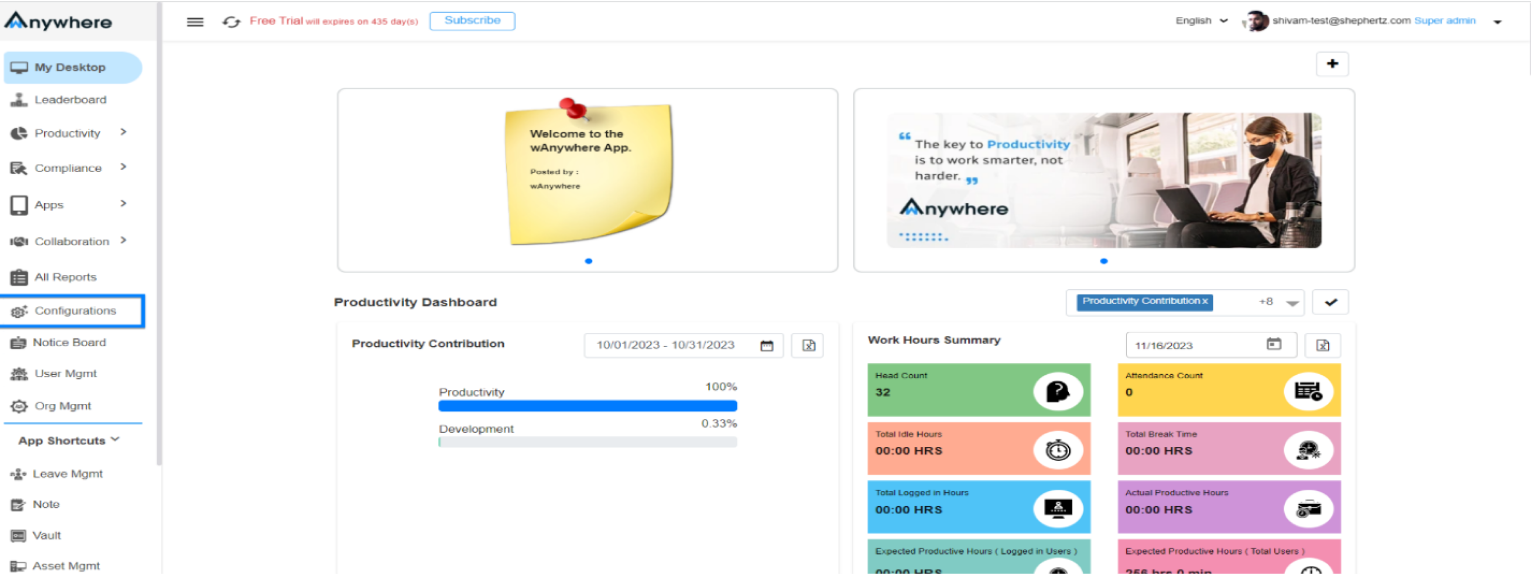
Check Notification Configuration
Navigate to the Configuration section of the Console
and verify whether breach notification email triggers
are enabled.
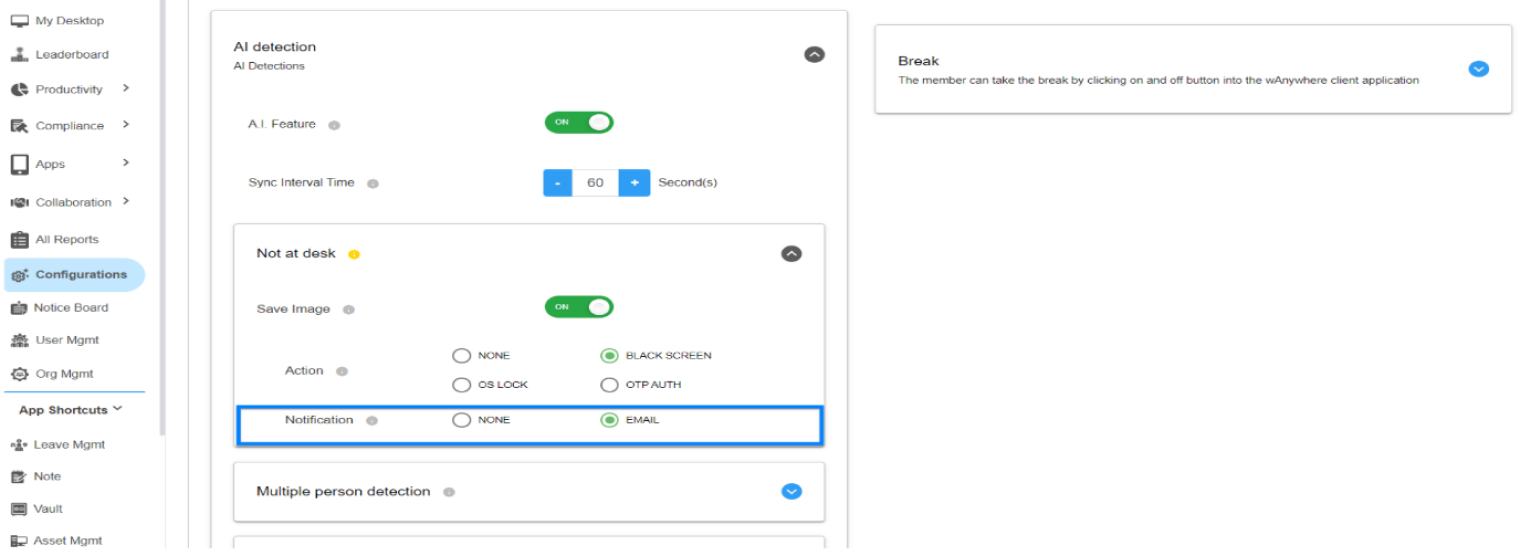
Select Email Notifications
Choose the ‘Email’ option under the Breach Notification
Alert settings.
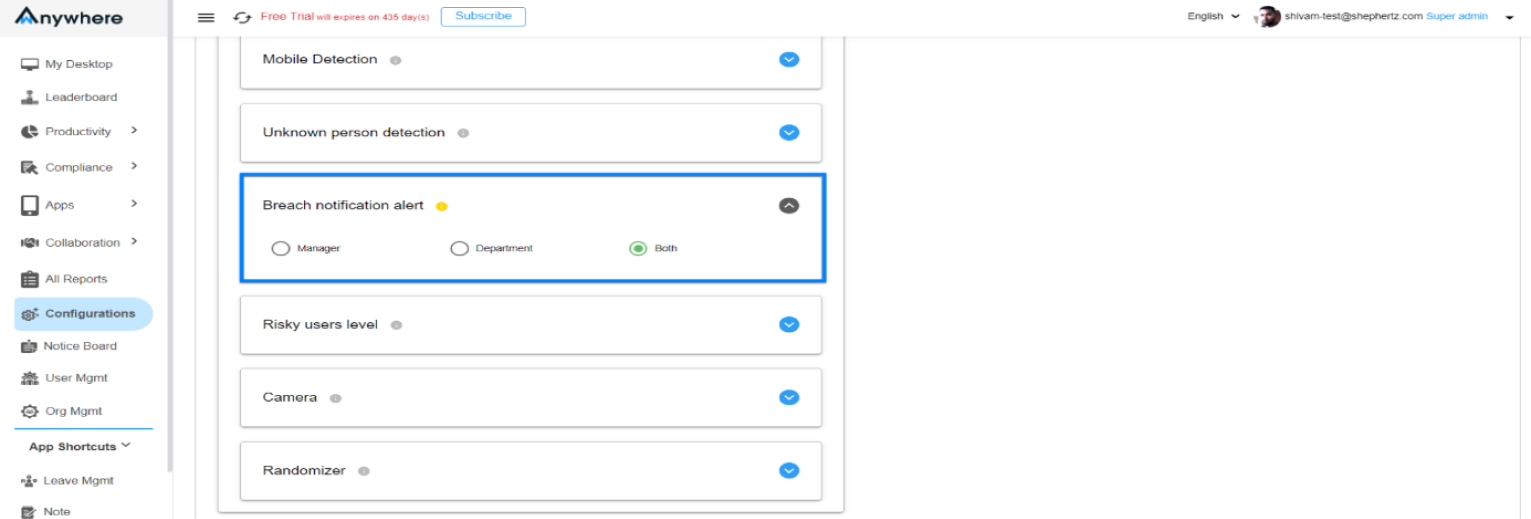
Choose Notification Recipients
Select whether notifications should be sent to the
Manager, Department Admins, or both.
Save Notification Settings
Click the ‘Save’ button to apply the notification
configuration.
Assign Email Addresses to Users
Go to ‘User Management’ and add the required email
addresses in the “Assigned To” section for users.
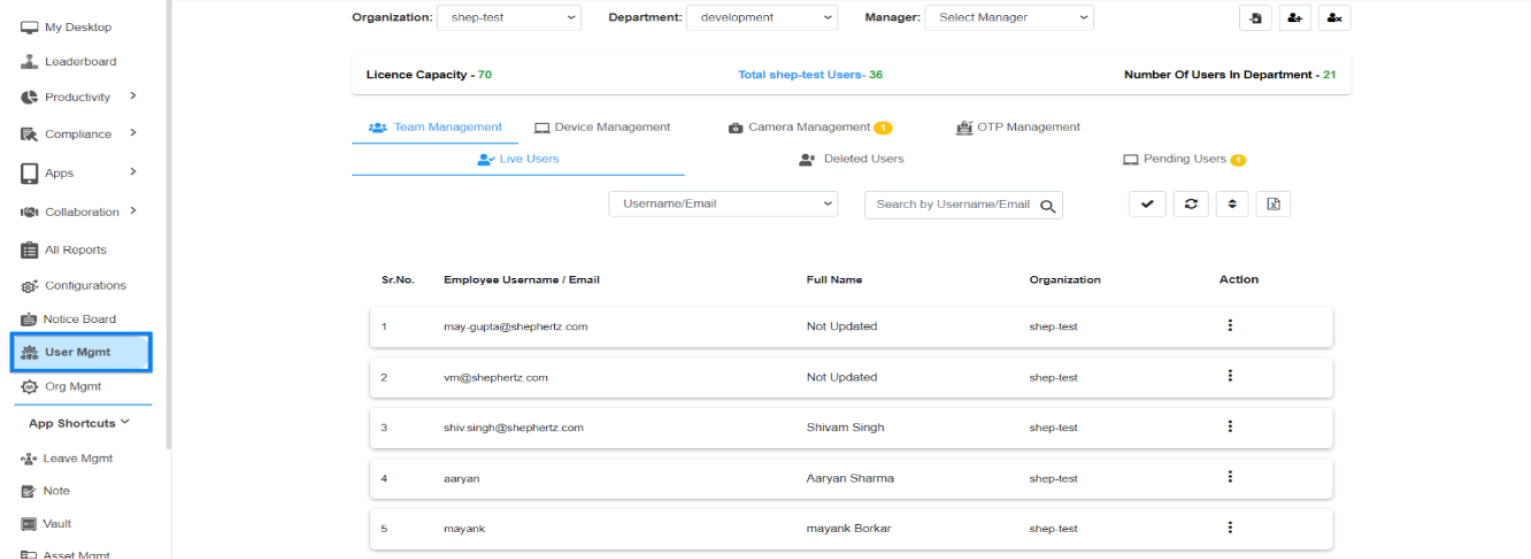
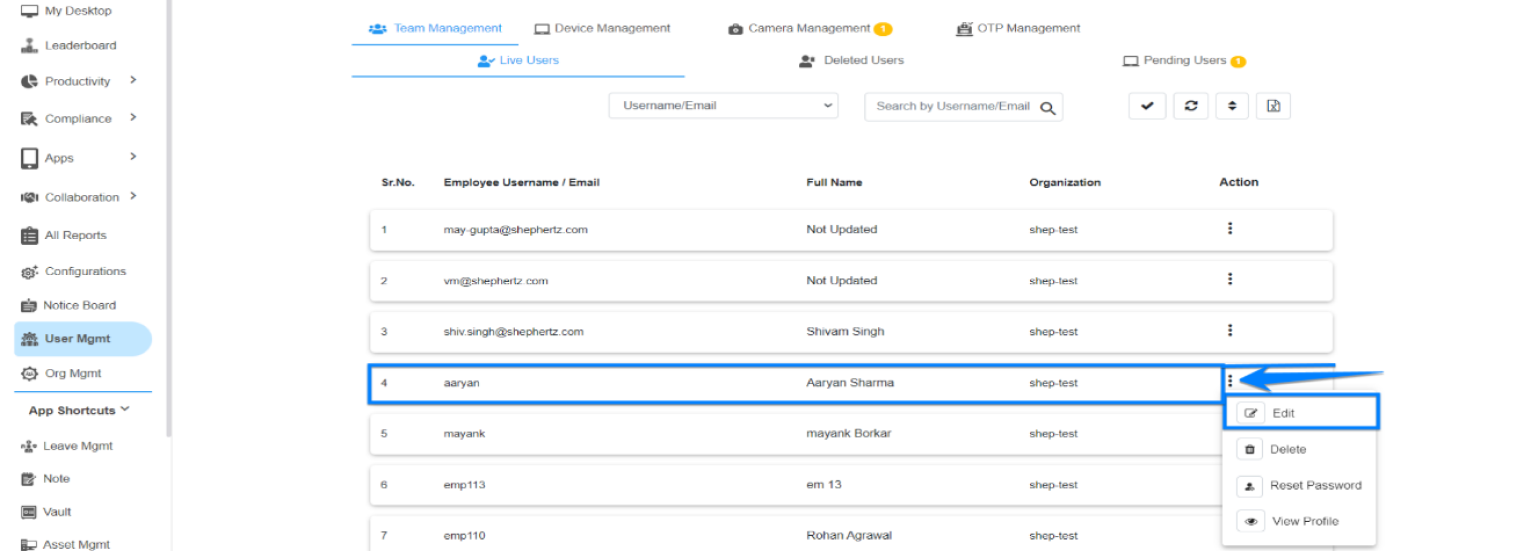
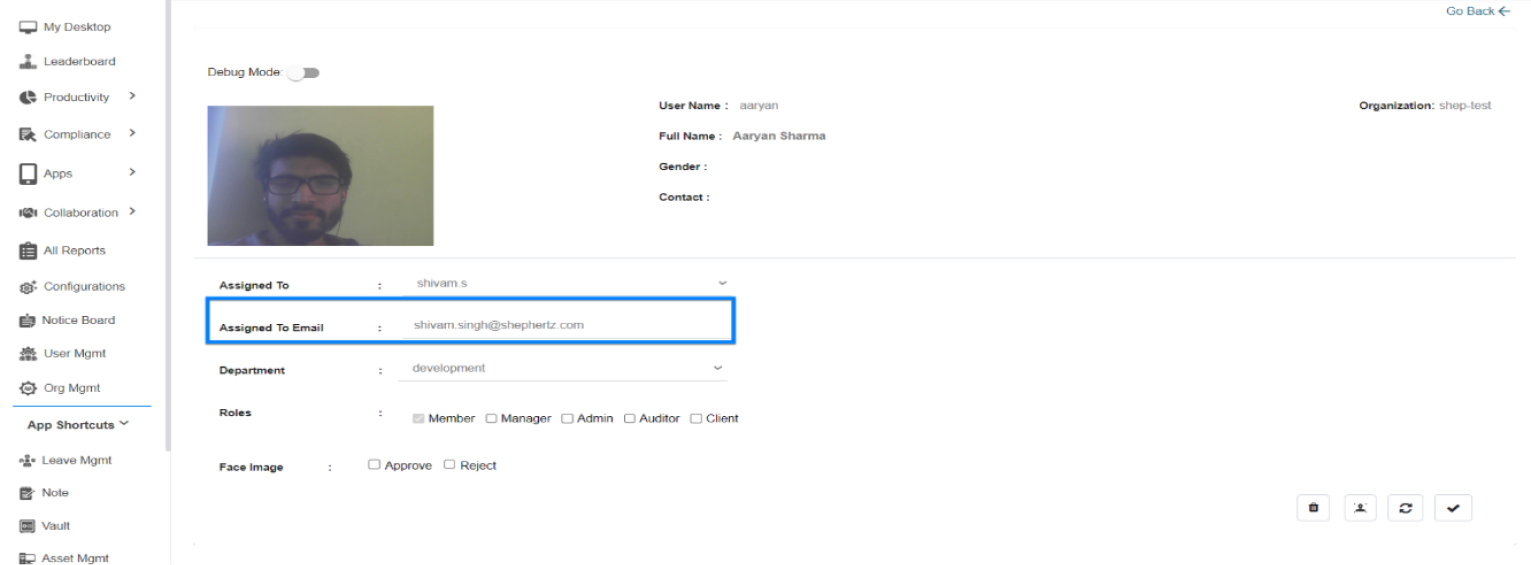
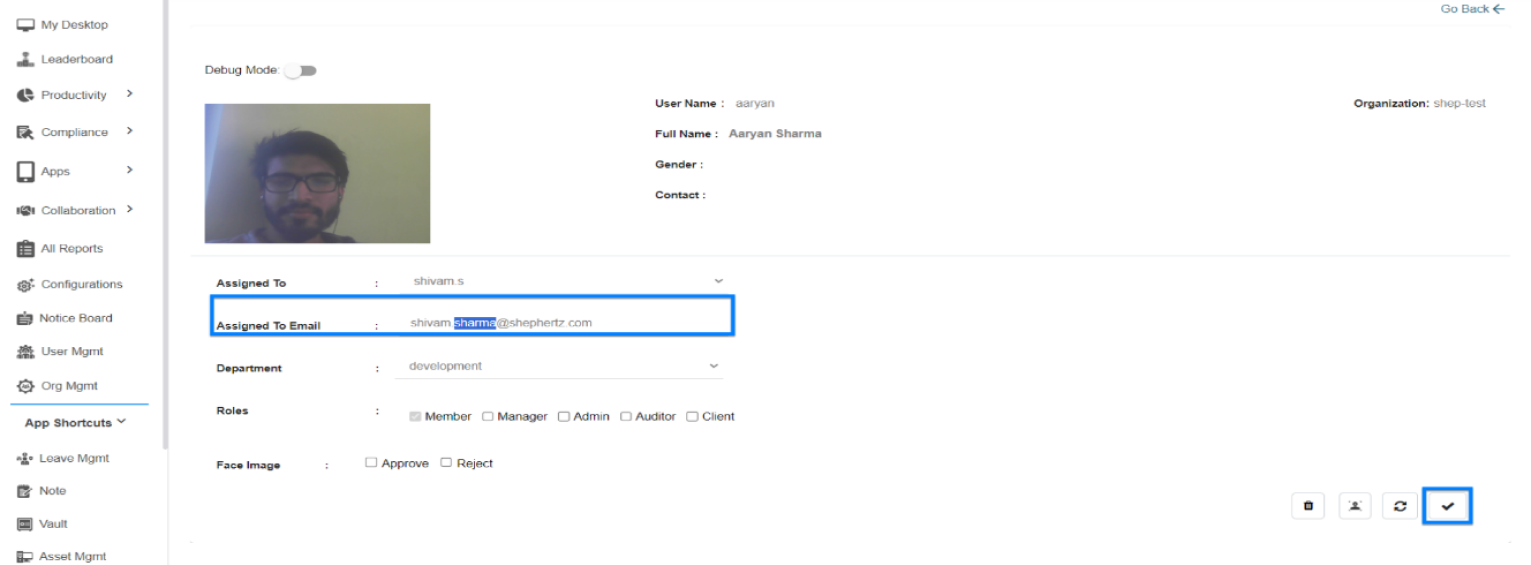
Update User Information
Click ‘Update’ to save the changes. Breach notifications
will now be sent to the configured email addresses.
Configure Department Admin Notifications
To notify Department Admins, assign admin email
addresses to each department.
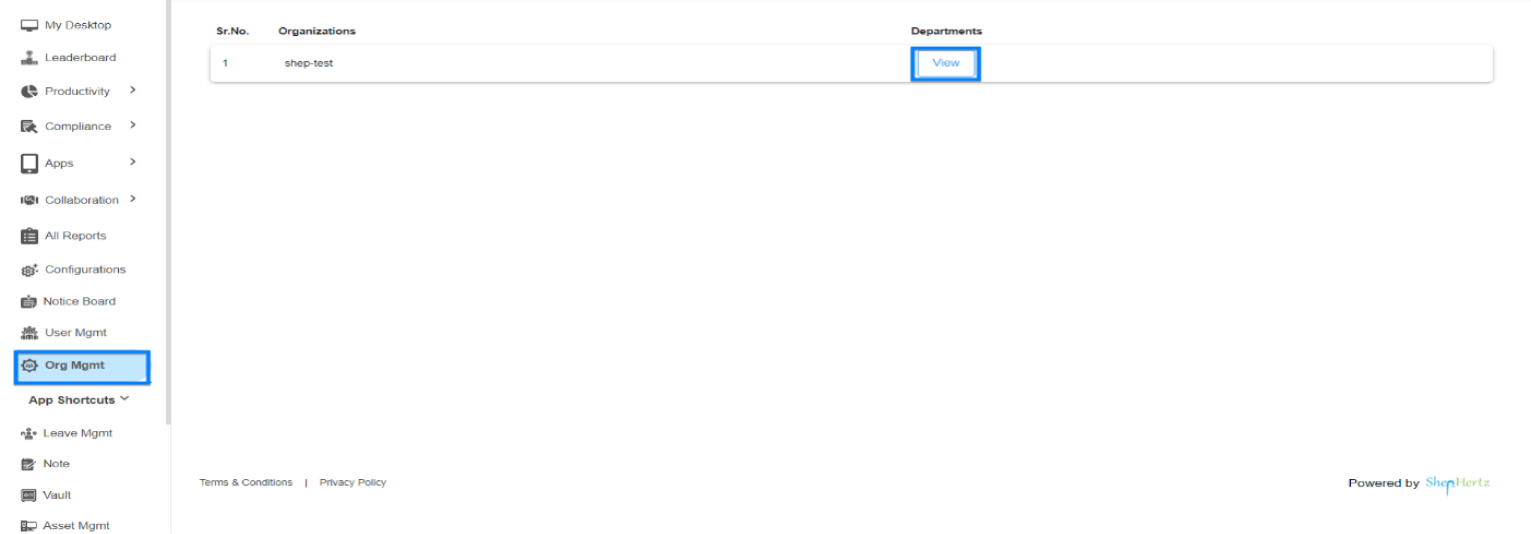
Open Organization Management
Navigate to ‘Org Management’, click ‘View’ against the
organization, and access the department listing.
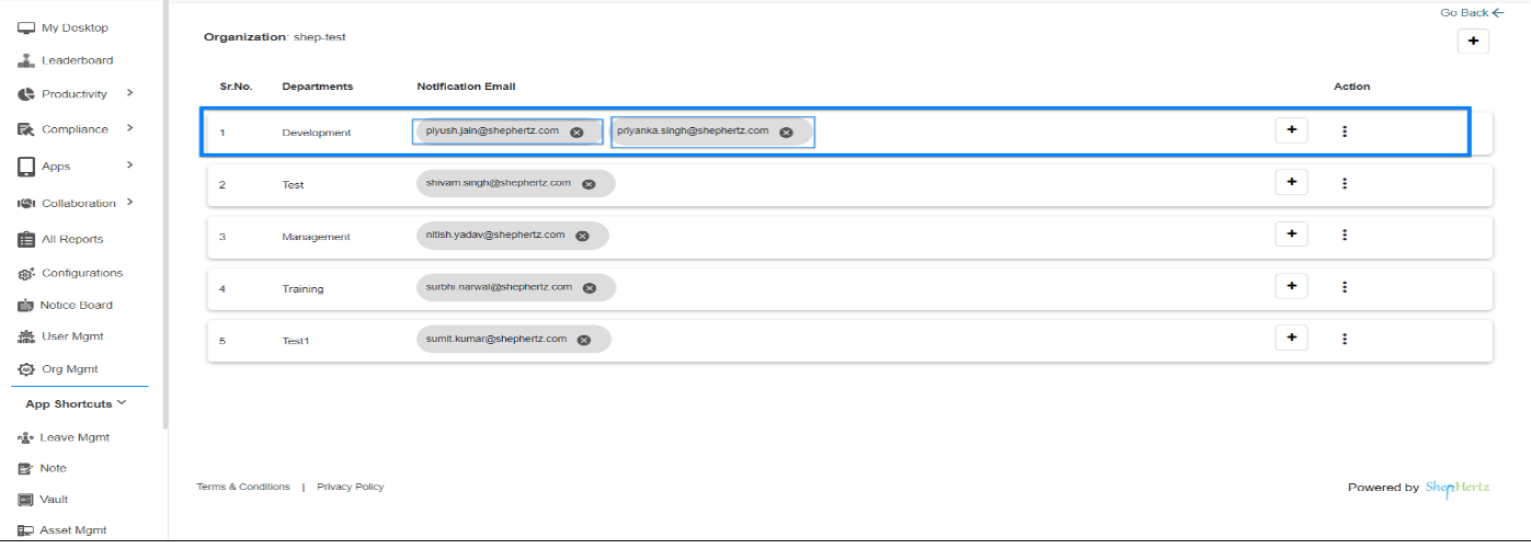
Add Department Email Addresses
Click the “+” button against a department and add the
required email address.
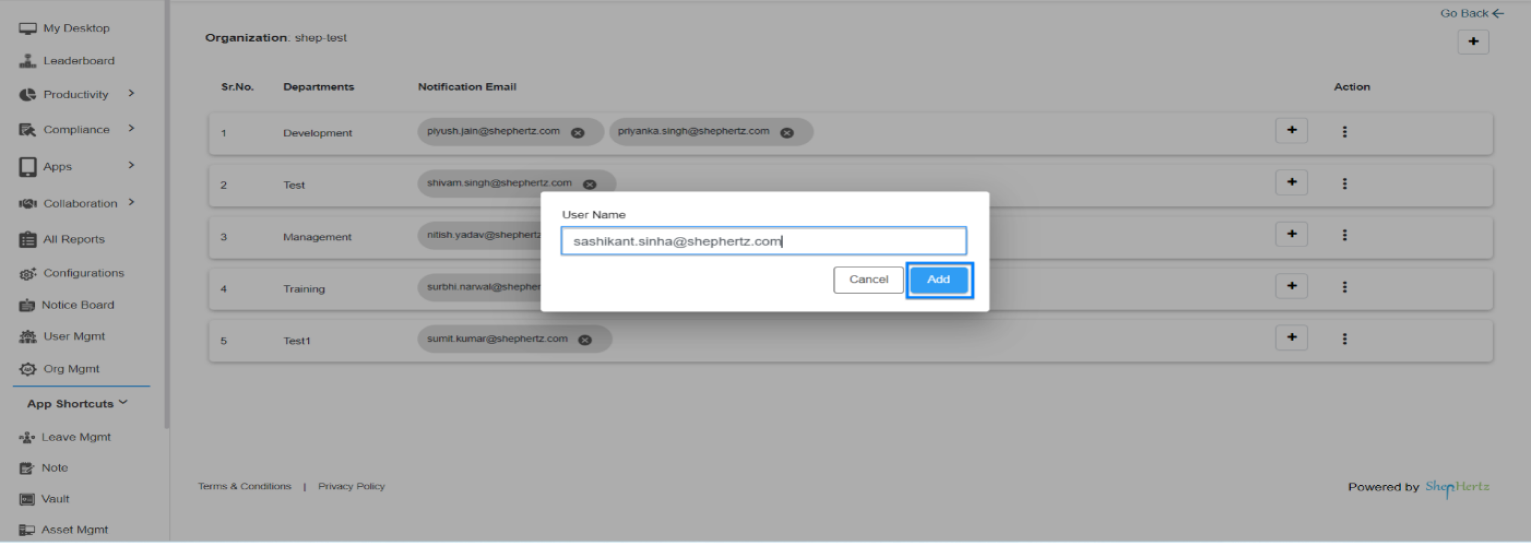
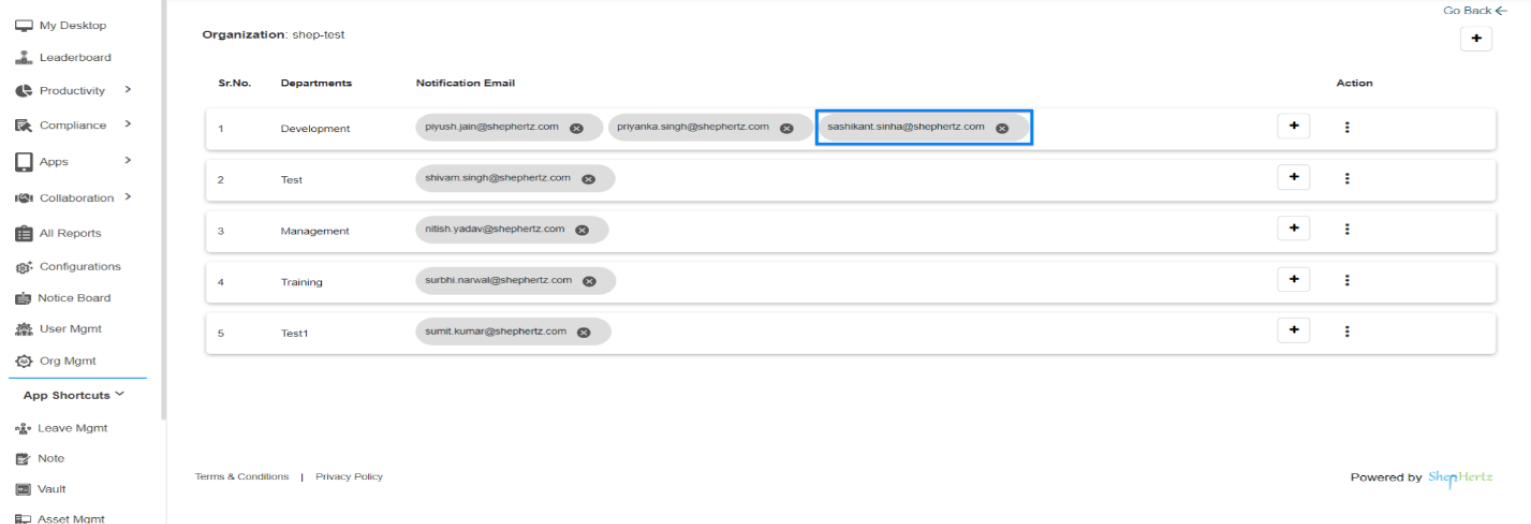
Verify Department Email Assignment
The added email address will appear in the department
listing and breach notifications will be sent to it.
Contact Support if Required
If breach notifications are still not being delivered,
contact the support team to verify SMTP and email
triggering services.
For more queries, please contact
cst@shephertz.com


