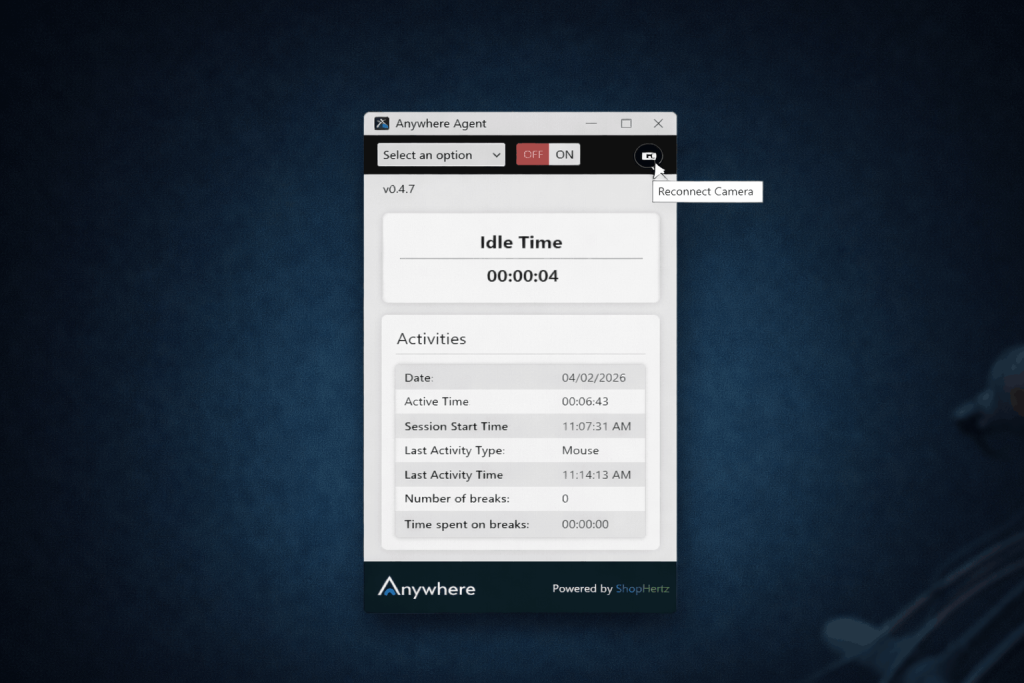
CAMERA MANAGEMENT
How Can I Release My Camera for Facial Registration and Training?
Follow these steps to temporarily release your camera from the
wAnywhere Agent Application for facial registration, training,
or use with other applications.
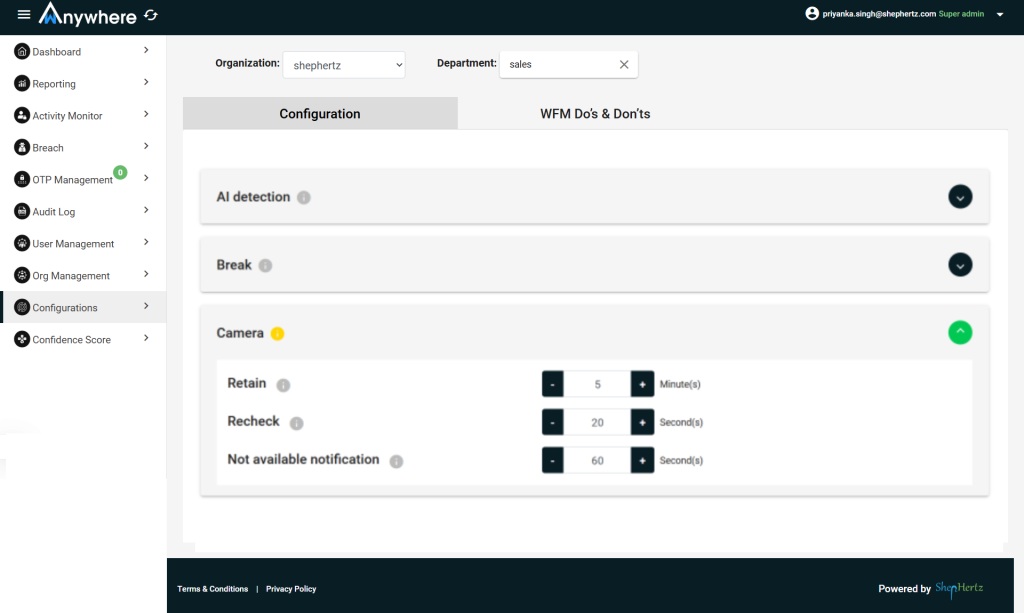
Configure Camera Release Settings
Set the Retain Time, Recheck Time, and Not Available
Notification settings in the Configuration section.
Retain: Releases the camera for a defined
interval so that another application can use it.
Recheck: After the retain threshold is
crossed, the application automatically checks again to
regain camera control.
Not Available Notification: Displays a
notification on the Agent Application.
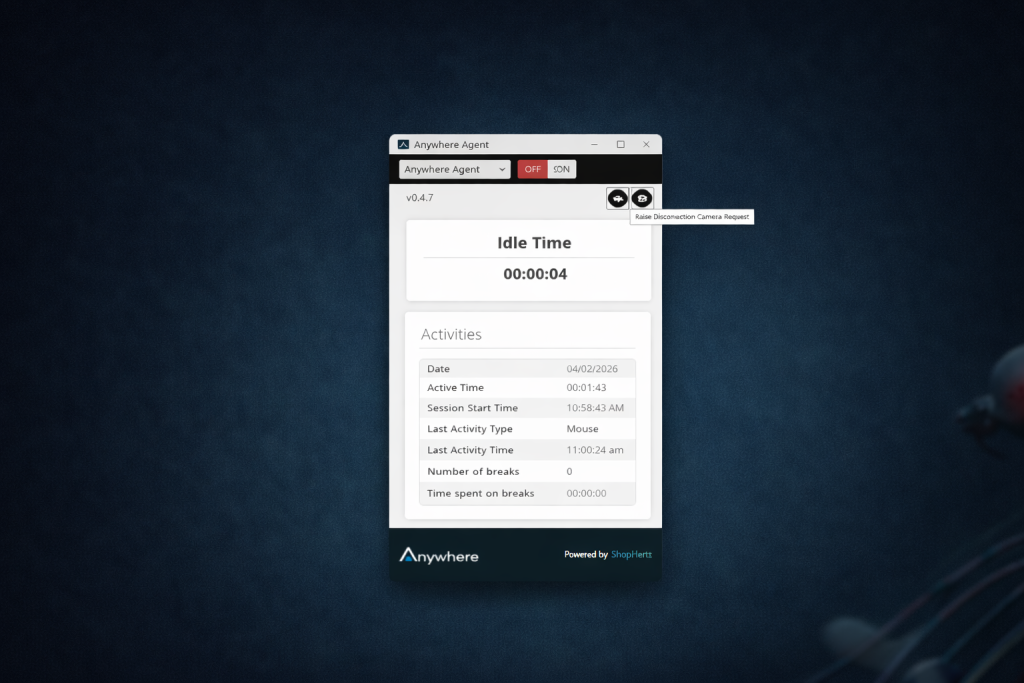
Raise a Camera Disconnection Request
Ask users to submit a Camera Disconnection Request to
release the camera from the wAnywhere Agent Application.
Review Requests in Camera Management
Camera disconnection requests are available to Managers,
Admins, and Super Admins under User Management →
Camera Management.
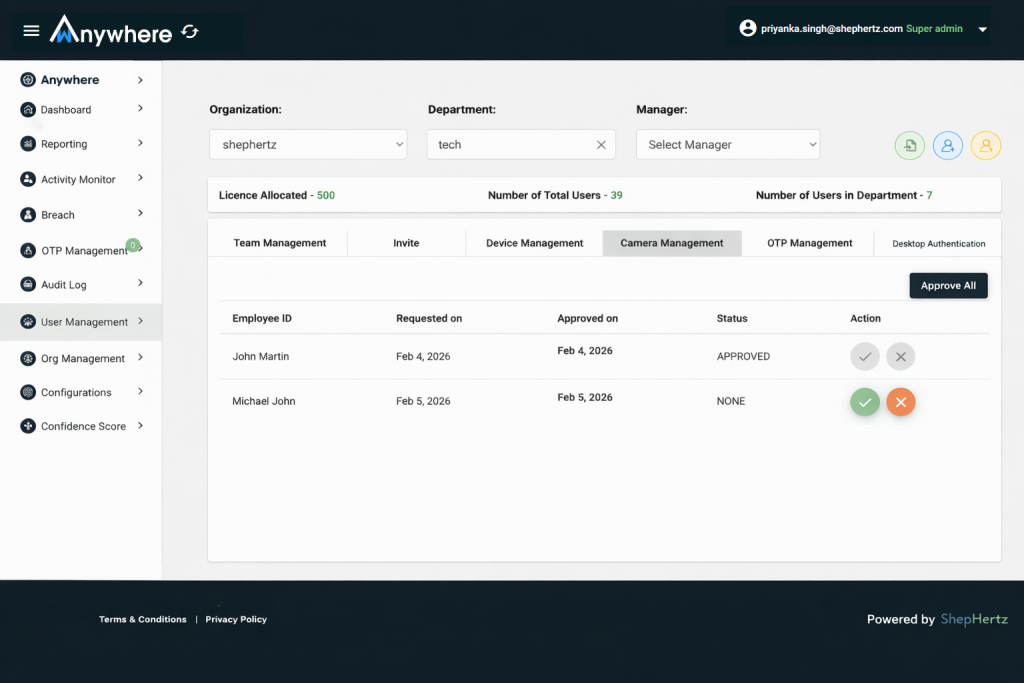
Approve or Reject the Request
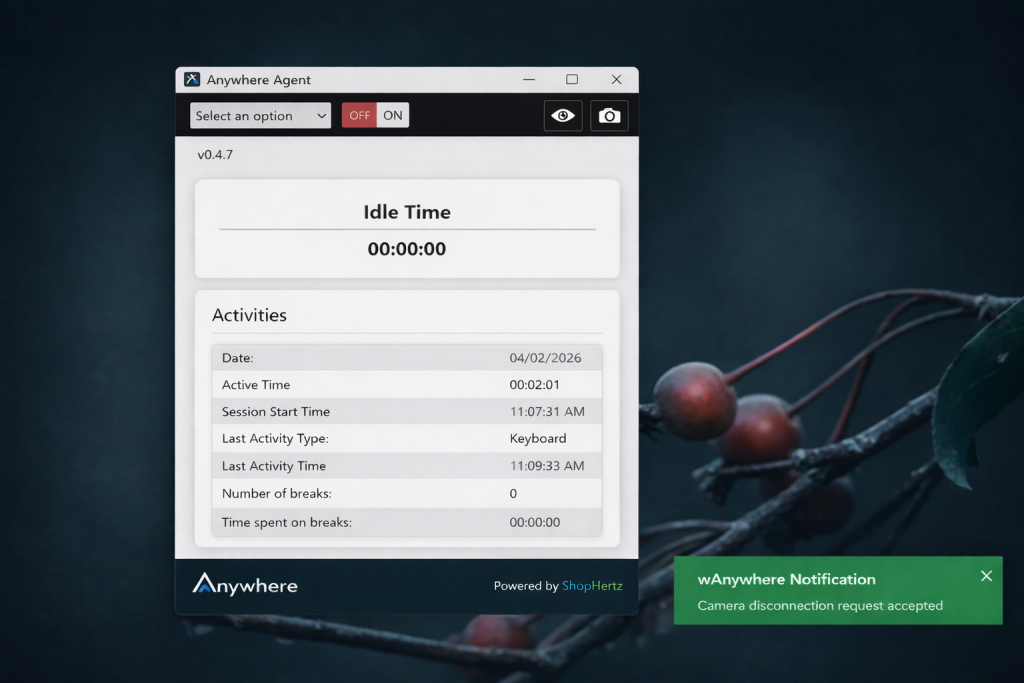
Users receive an on-screen confirmation dialog informing
them whether their request has been approved or rejected.
Release the Camera
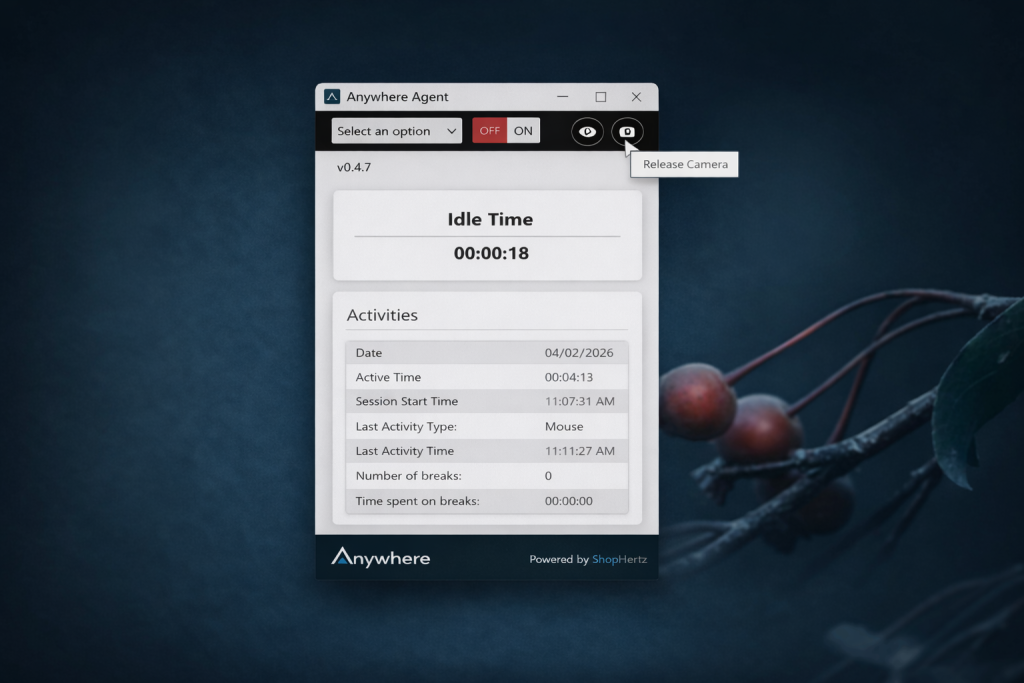
After approval, the “Raise Disconnection Request”
button changes to “Release Camera”. Click it to
manually terminate the current camera session.
Use the Camera in Other Applications
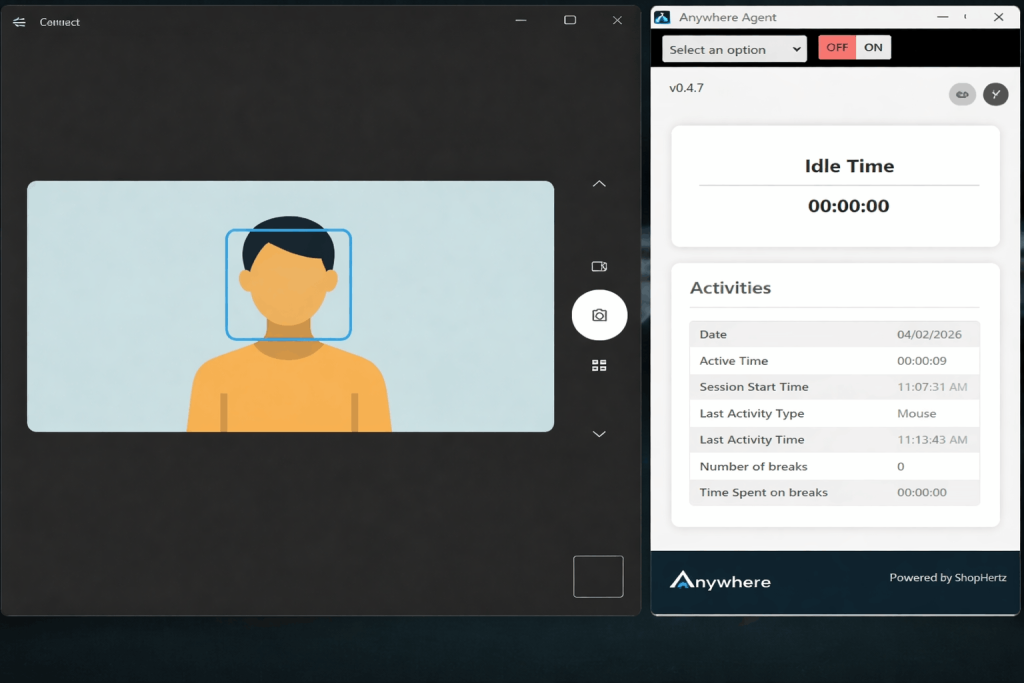
Once released, the camera becomes available for use in
other installed applications such as Zoom or Microsoft Teams.
Reconnect the Camera
Users can click “Reconnect” to instantly restore the
camera feed. If no action is taken, wAnywhere will
automatically reconnect based on the configured Retain
Time settings, provided the camera is available and not
being used by another application.