
USER APPROVAL
How to Accept/Reject Registered Users on wAnywhere Application?
This guide explains how Super Admins/Admins can approve or reject
newly registered users on the wAnywhere Console.
Overview
This document explains the steps to approve or reject
registered users on the console.
User Approval Management
Super Admins/Admins can approve or reject newly registered
users within the organization.
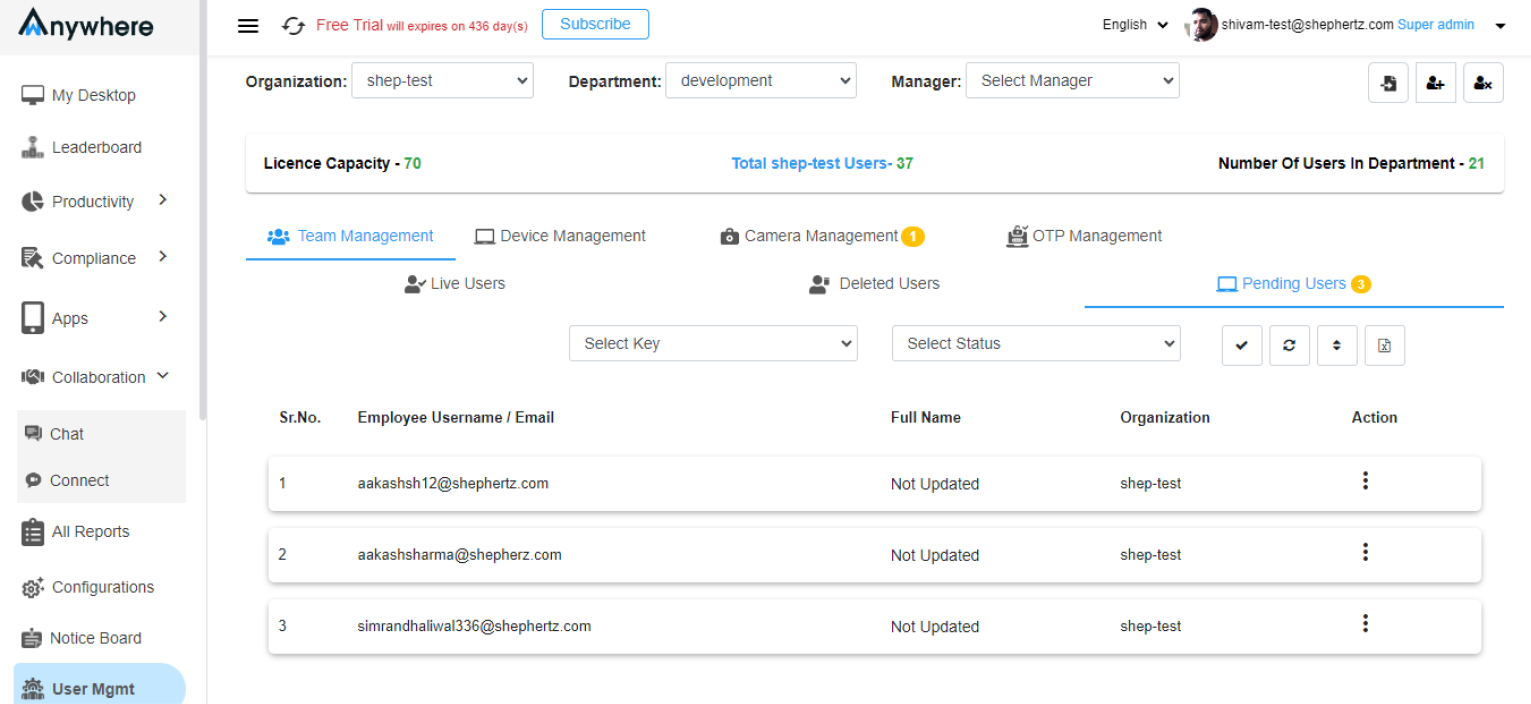
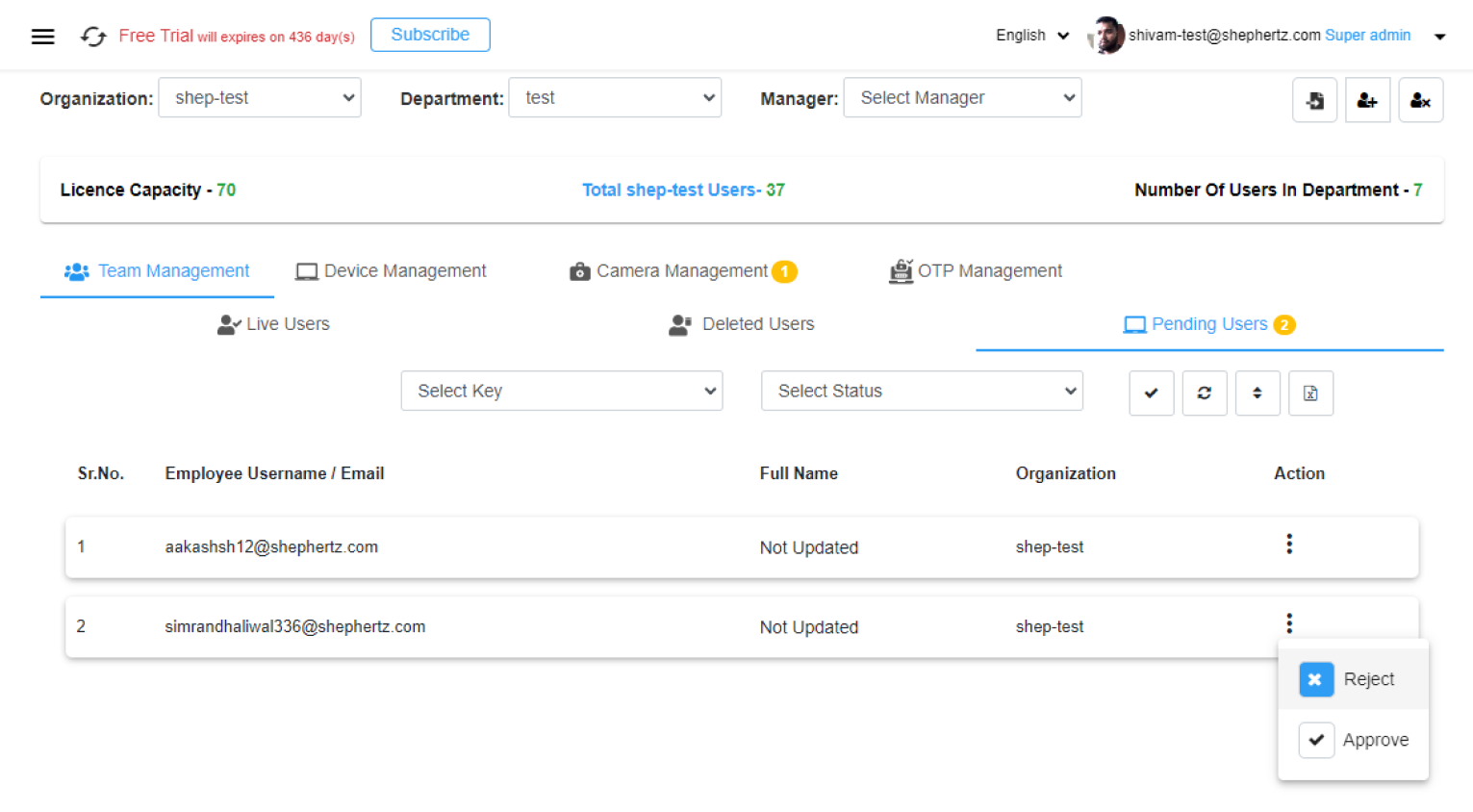
Open Pending Users
Go to User Mgmt and find registered users
under the Pending Users tab.
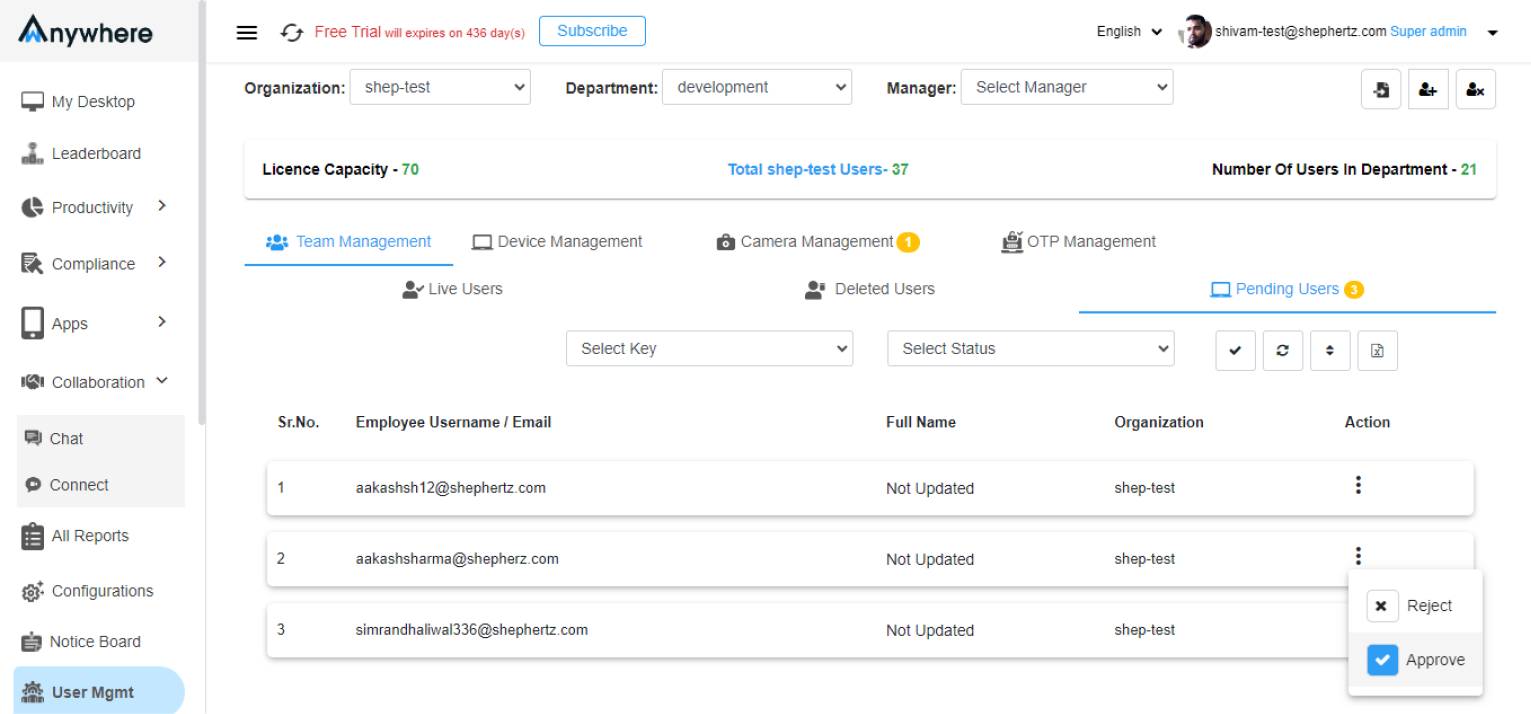
Approve or Reject User
Choose either Approve or
Reject for the registered user.
Edit User Profile
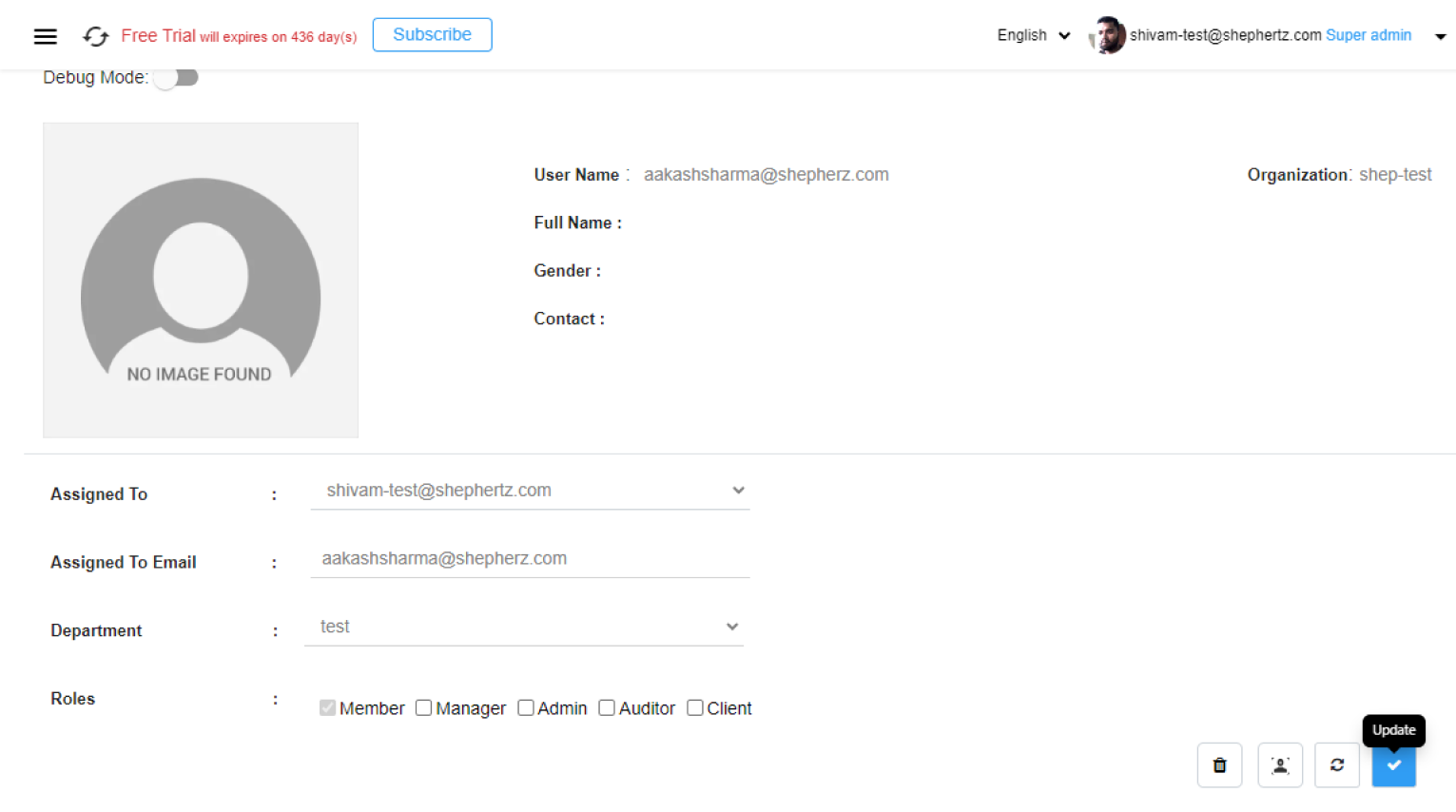
Clicking the Approve button redirects
you to the newly registered user’s profile page.

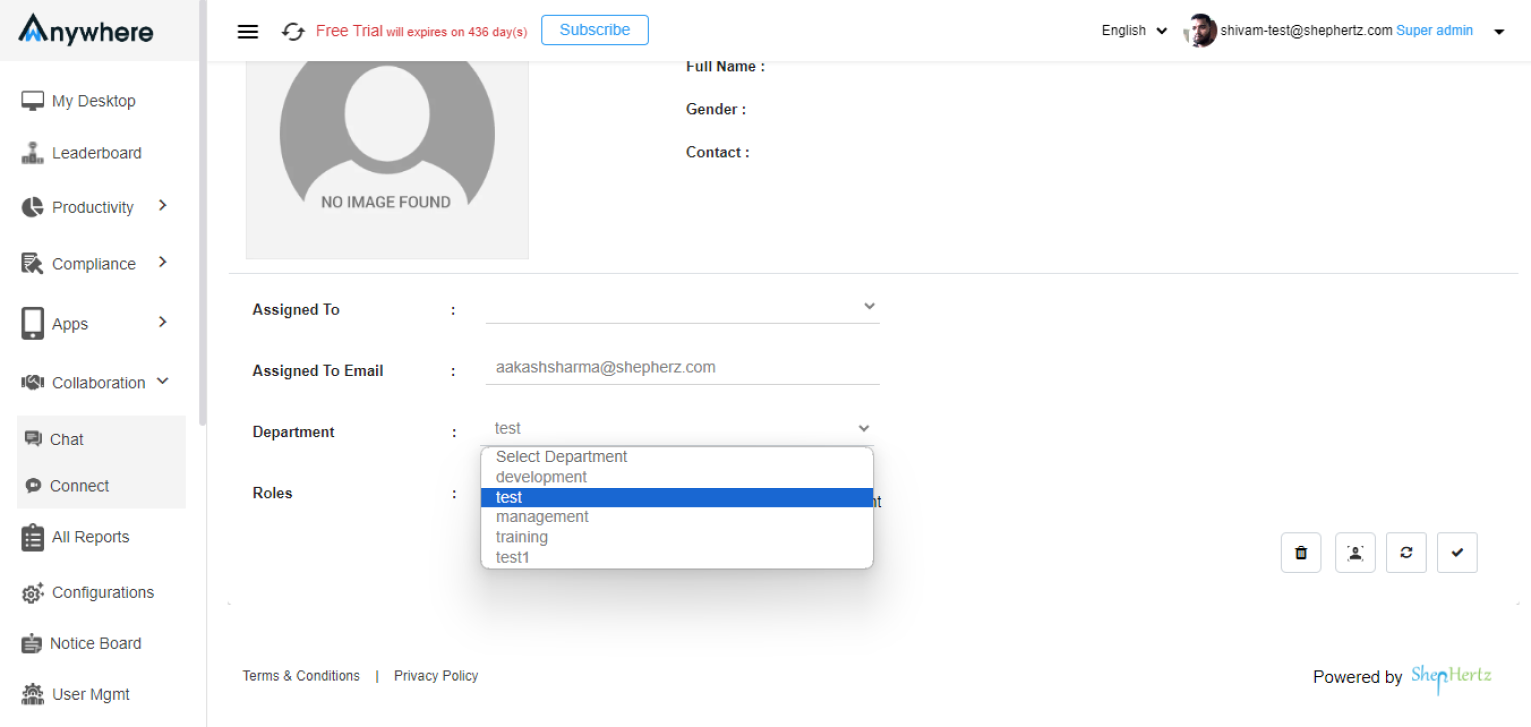
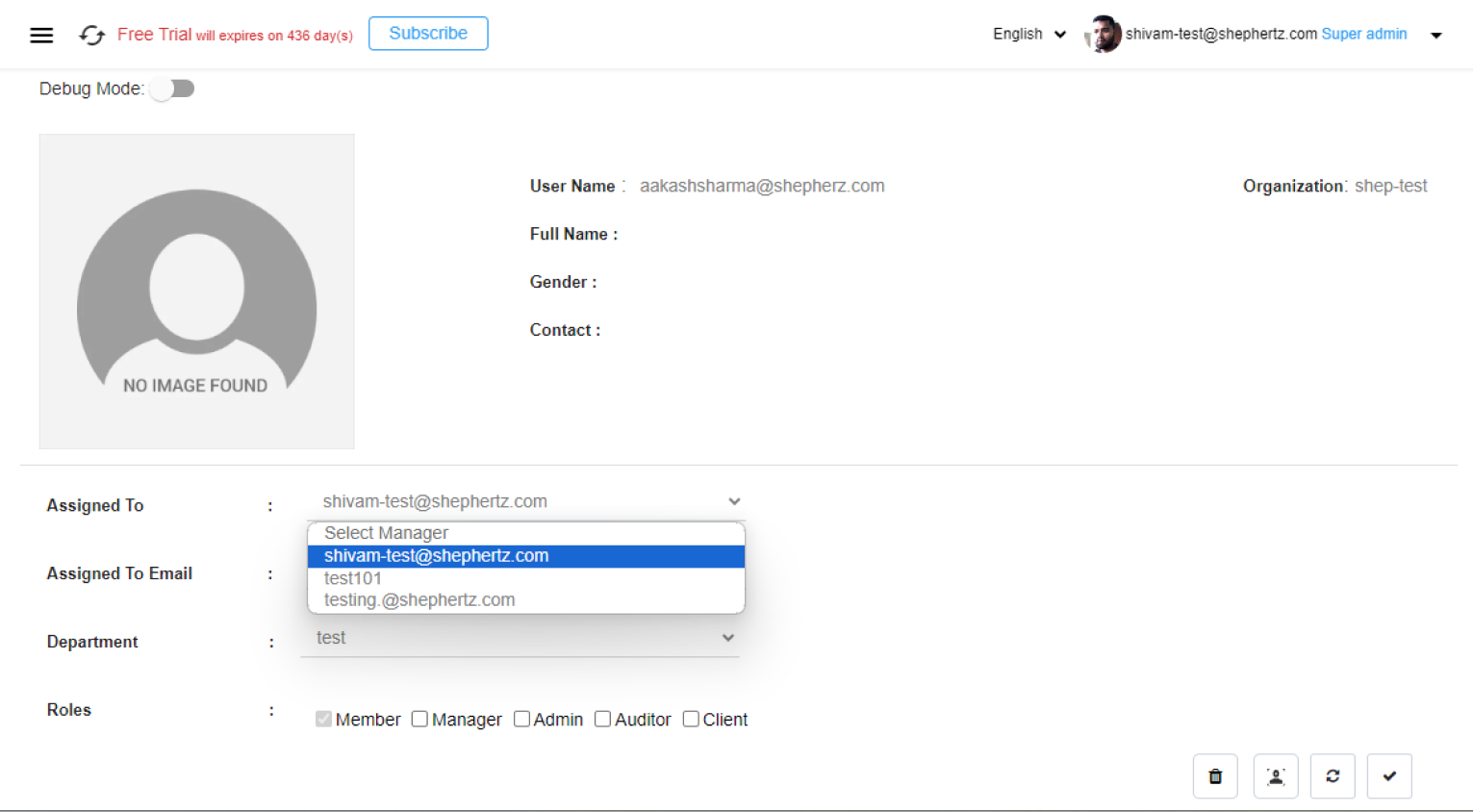
Assign User Details
Assign the Manager, Assigned Email, Department, and
appropriate Roles for the user.
Member Role Assignment
If no role is assigned during approval, the user will be
treated as a Member by default.
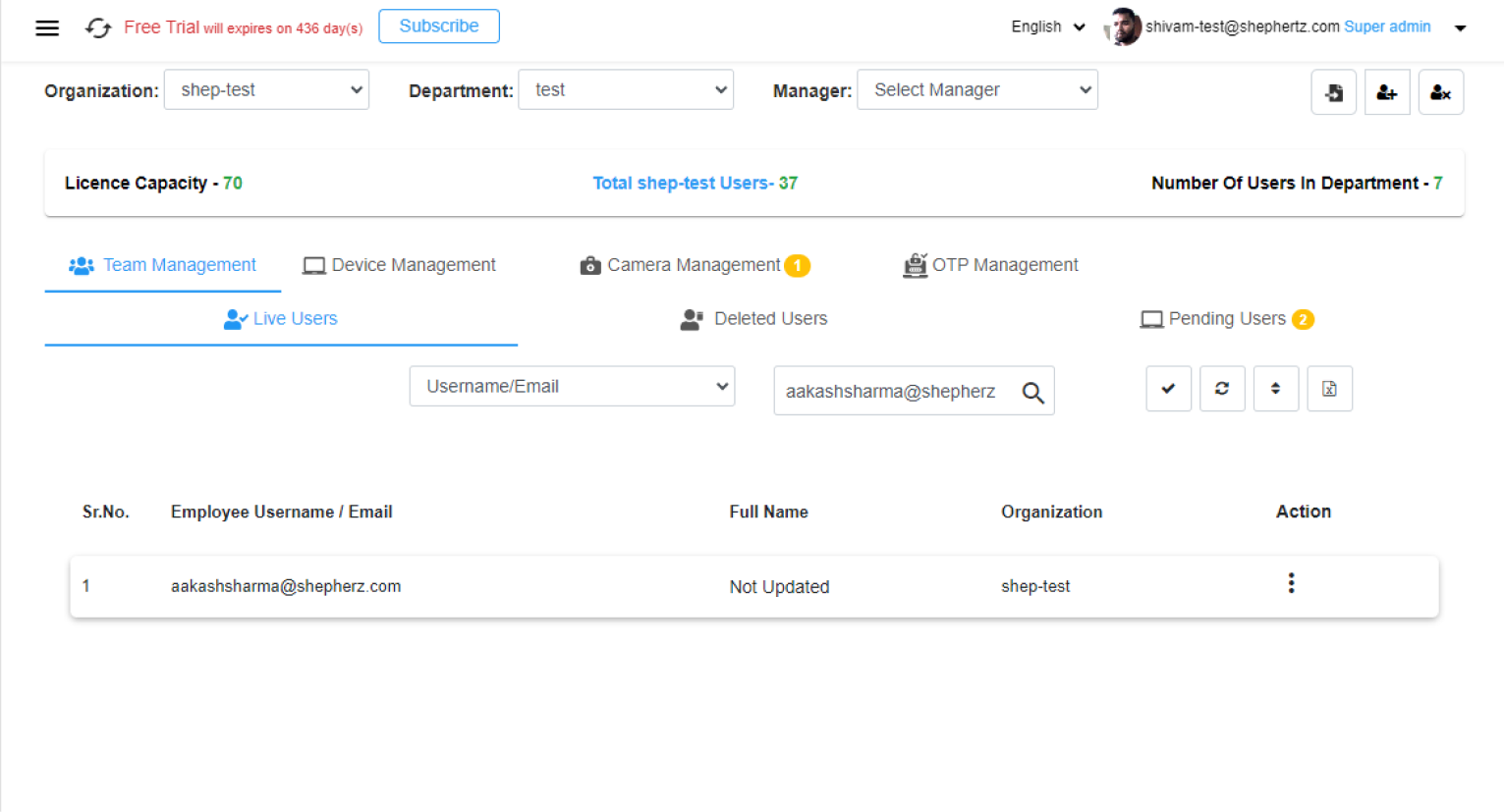
User Moves to Live Users
After profile update and approval, the user moves from
the Pending Users tab to the
Live Users tab.
Reject User
Super Admin/Admin can remove users from the console by
clicking the Reject button.
Login Access
Only approved users can successfully log in to the
wAnywhere Agent Application.


