FAQ GUIDE
How to generate an agent application log?
Agent logs can be extracted by the Agent/User from the agent application and can be viewed by the Super Admin, Admin, and Manager on the console. These logs help investigate issues on the agent’s system.
Agent Log Generation
Open the wAnywhere agent application. You can see the Log button on the top-right side of the application alongside the Eye icon. Click on it.
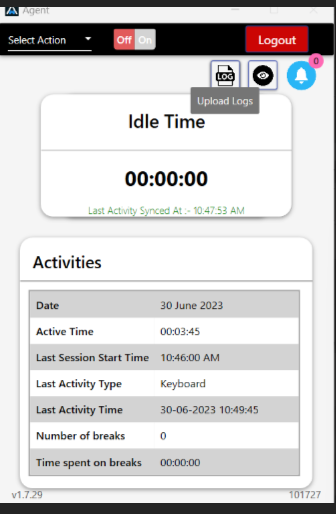
Upload Logs to Server
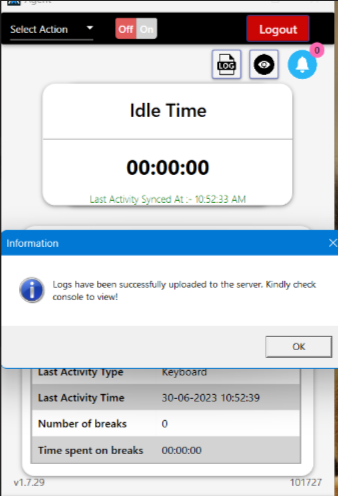
After clicking the Log button, the agent/user will get a notification: “Logs have been successfully uploaded to the server. Kindly check console to view!”
View Logs on Console
The logs will now be available to be viewed on the console.
Login to Console
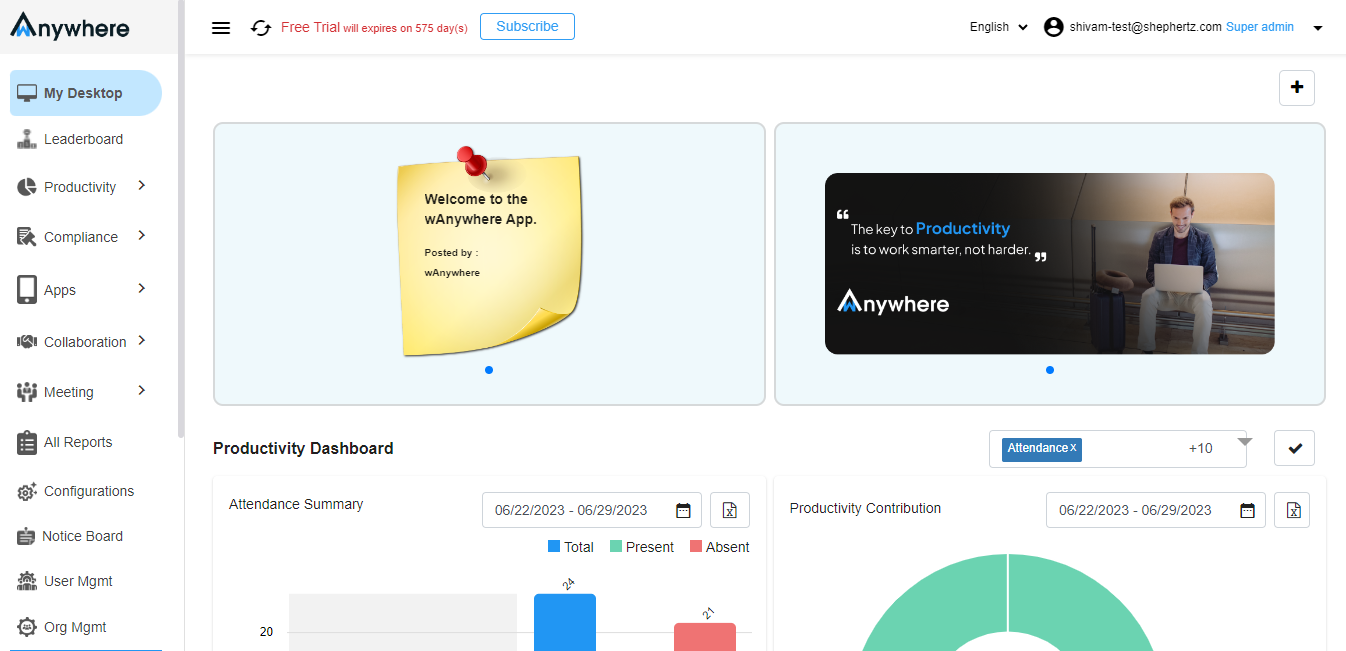
Open and login to the wAnywhere Console through your browser.
Open Settings
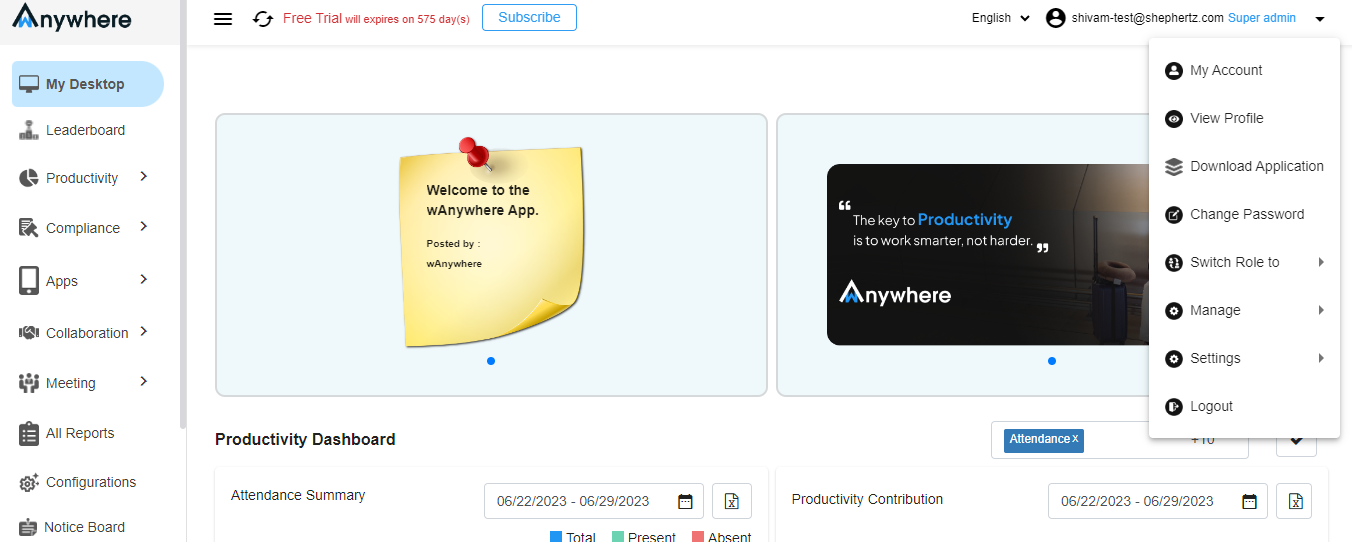
Click on the dropdown near the user name and then click on Settings.
Open Audit Logs
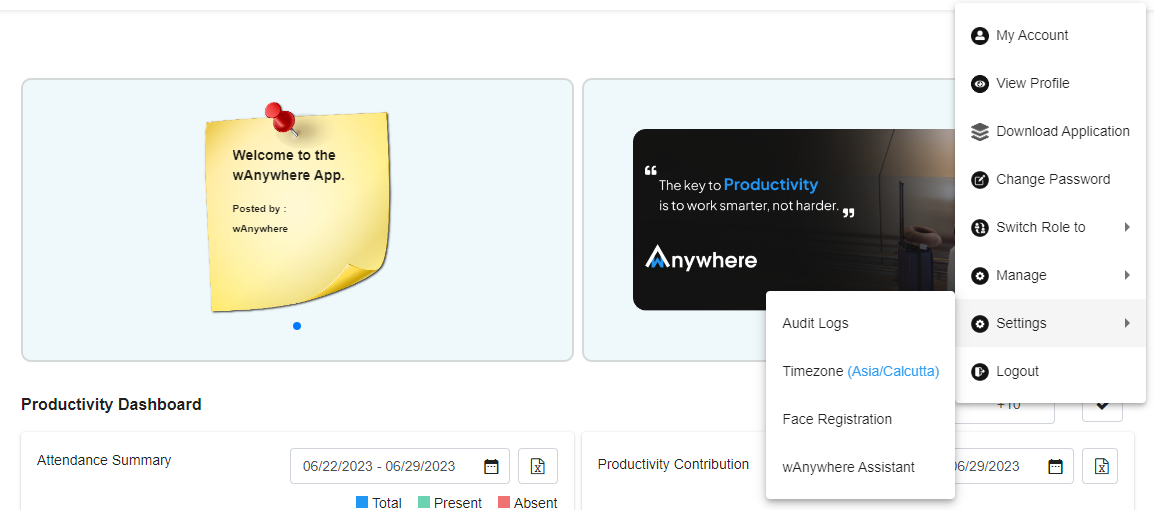
Click on Audit Logs to view and download the application logs of agents.
Open Agent Download Tab
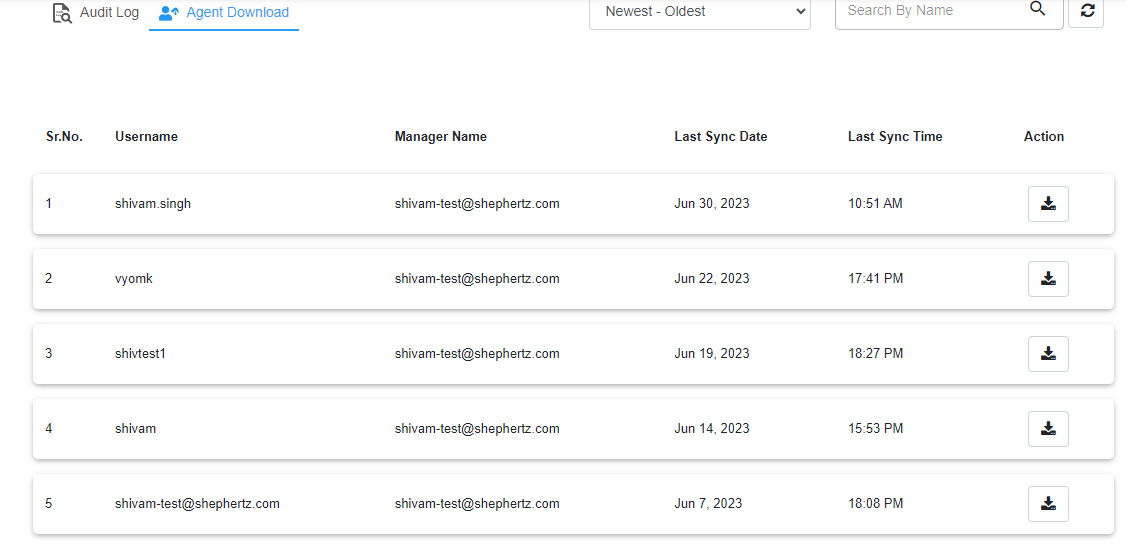
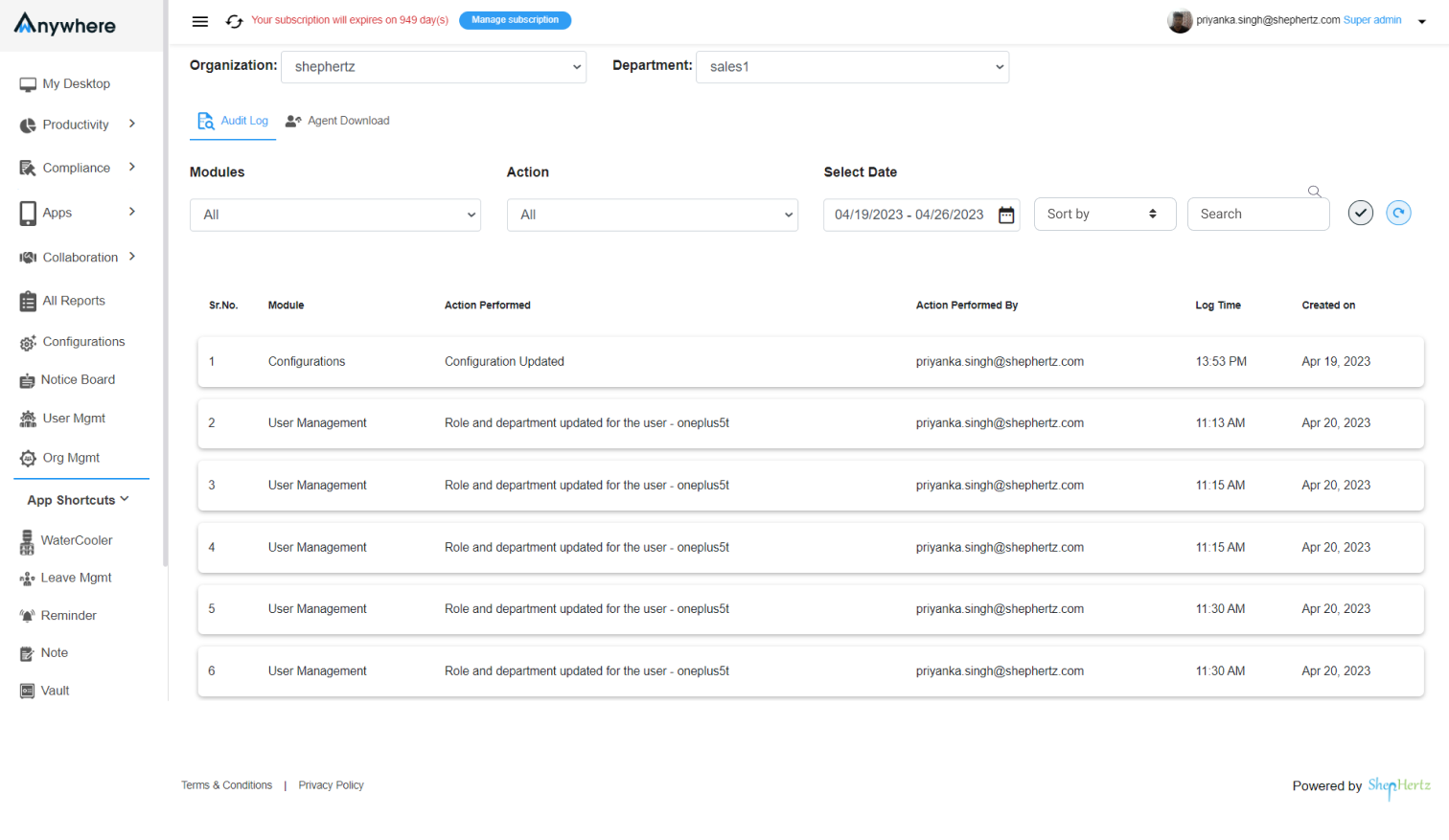
After opening Audit Logs, click on the Agent Download tab next to the Audit Log tab.
Download Agent Logs
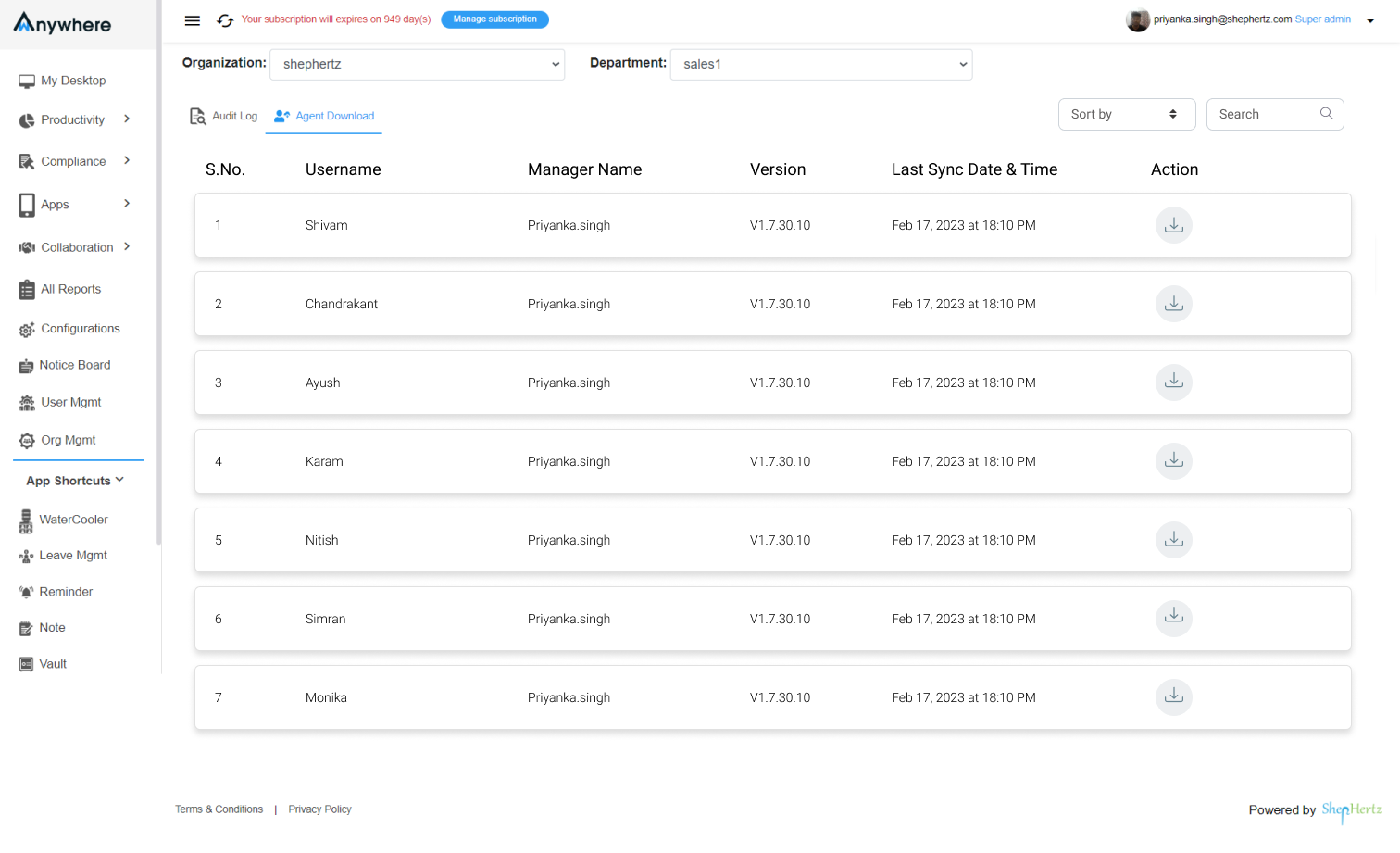
You will see a list of users who have extracted logs. From here, you can download the agent application logs and view their details.