
CAMERA RELEASE
How to Set Up the Camera Release by the Manager Functionality?
This guide explains how to configure camera release permissions and scheduling through the wAnywhere Console.
01
Enable Camera Release Feature
Follow the navigation below:
- Login with Super Admin/Admin ID
- Go to Configuration
- Select AI Detection
- Open Camera Settings
- Enable the Release Camera Toggle (Manager)
02
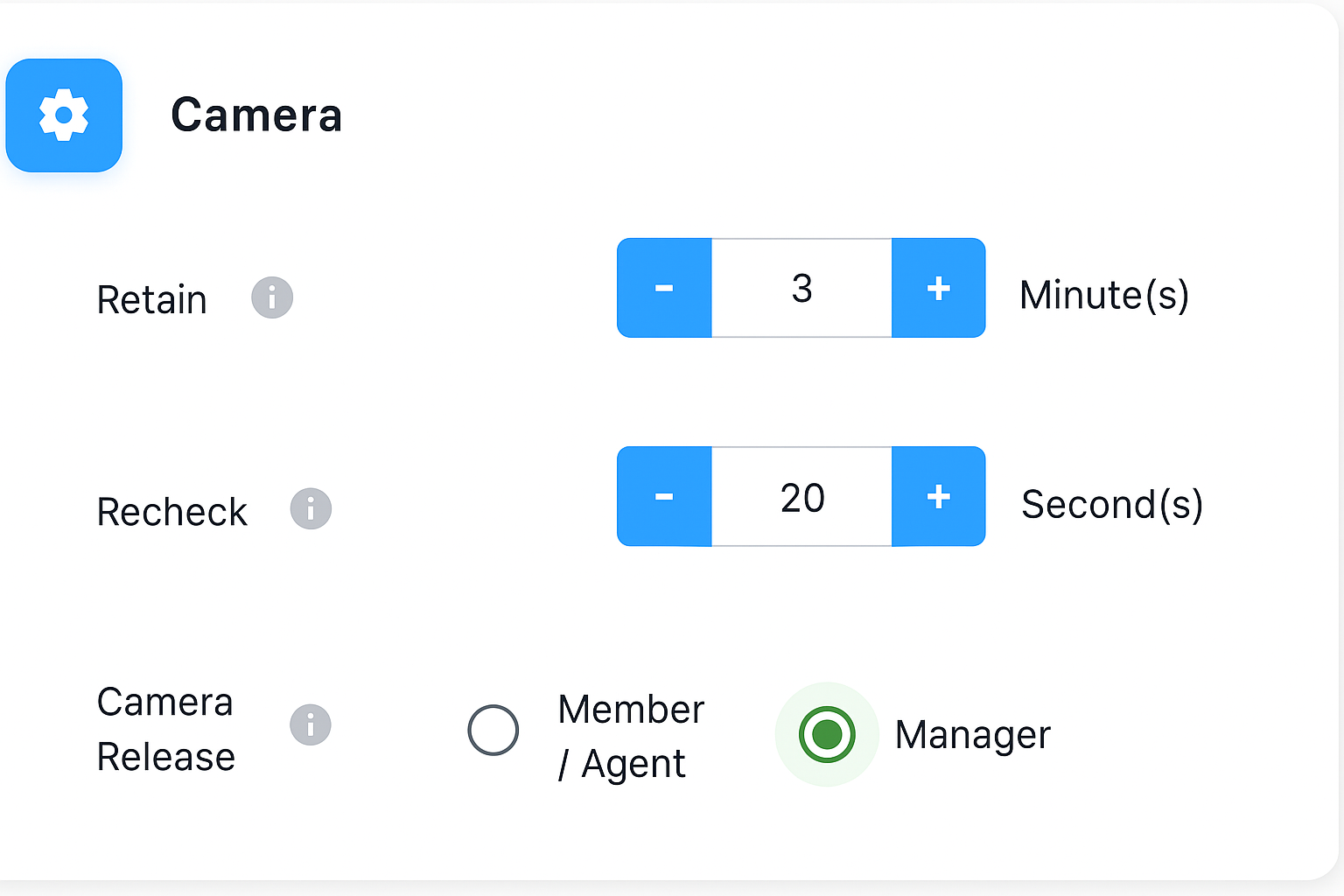
Camera Release Role Setting
The Camera Release role setting controls which user role has permission to release the camera.
03
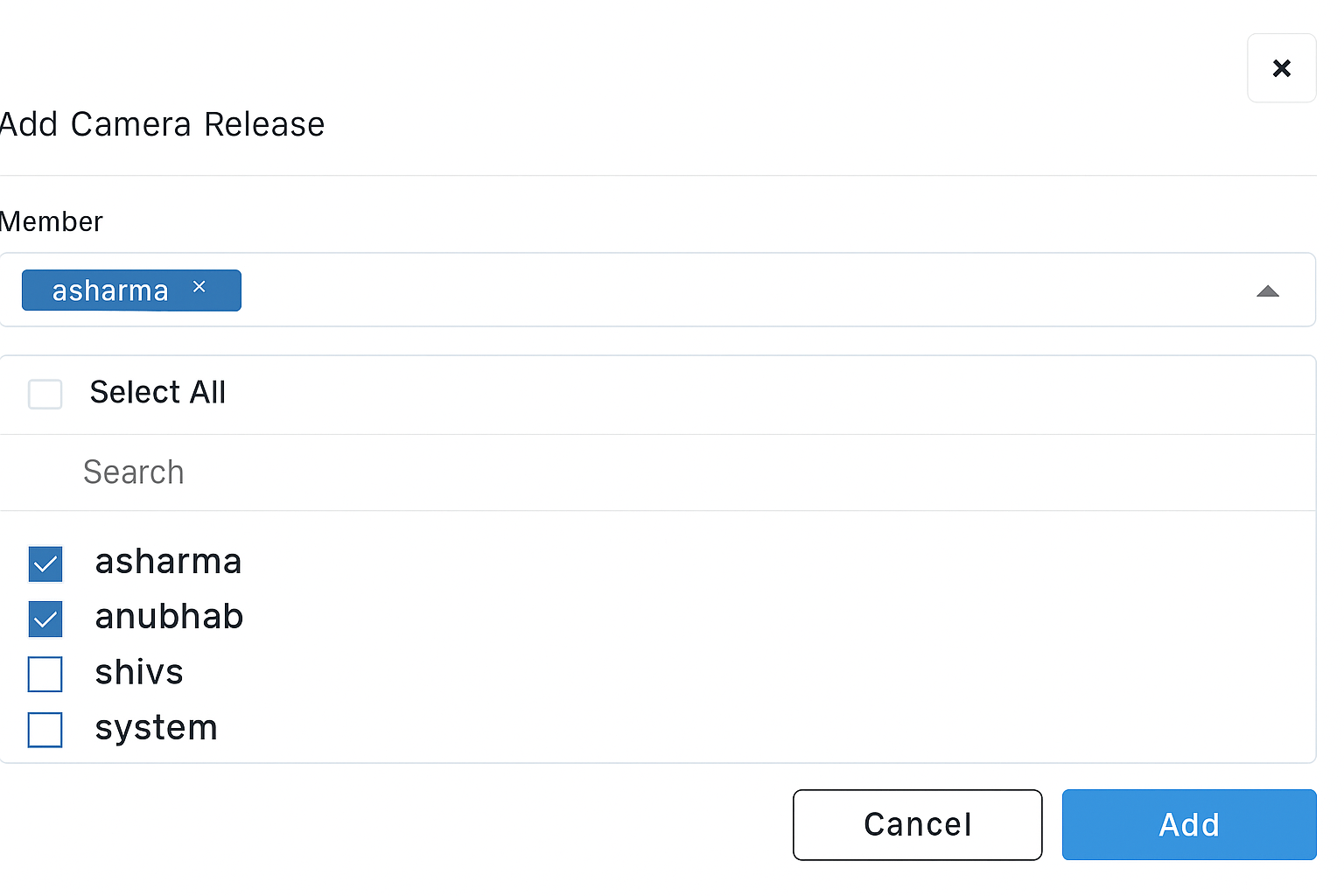
Assign Camera Release Permissions
Assign camera release permissions to one or more members.
- Click on the Camera Release configuration option.
- Use the Member dropdown to search and select members.
- Use Select All, search by name, or manually select users.
04
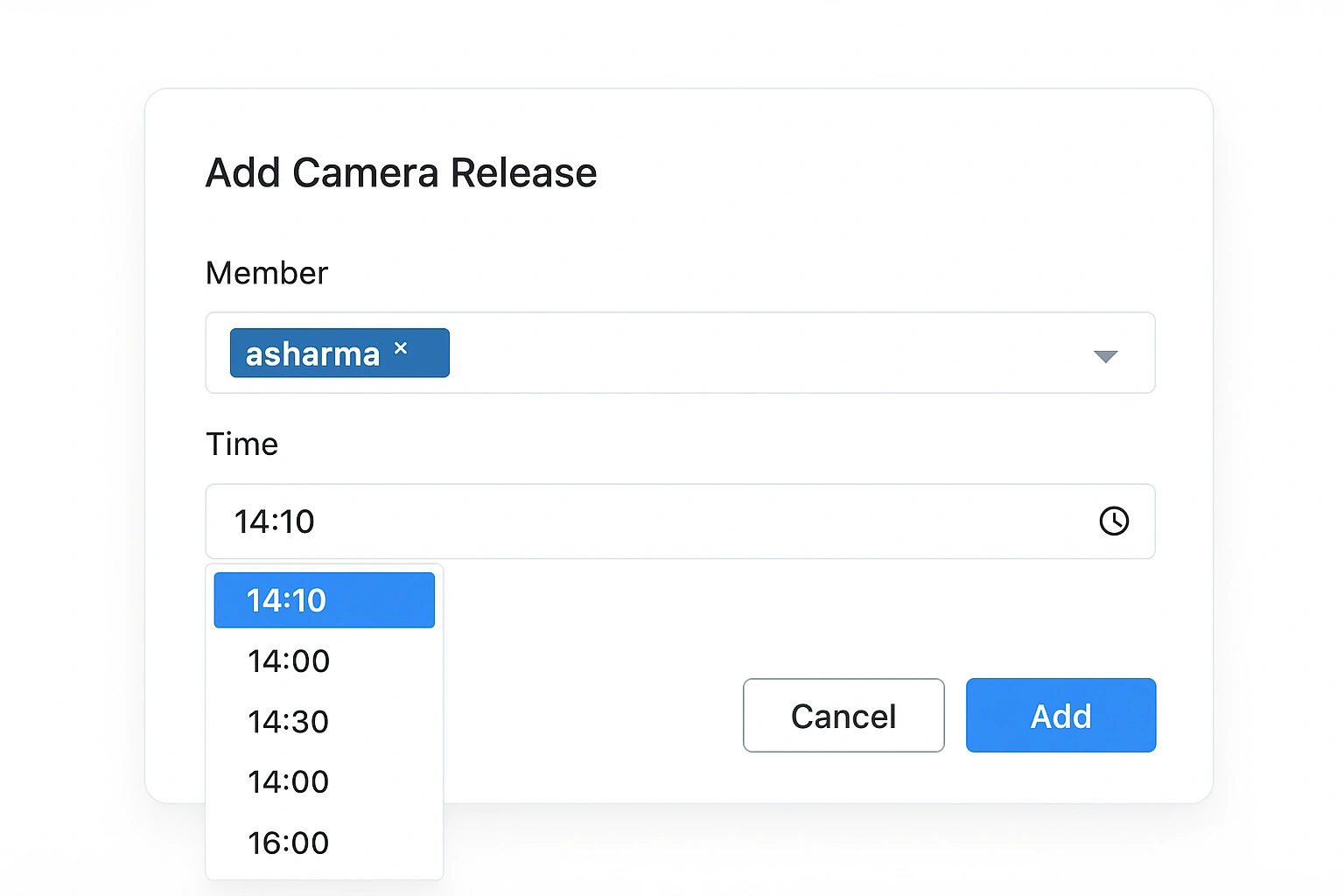
Set Camera Release Time
Configure a specific schedule for camera release.
- Click the clock icon or time field.
- Select the desired hour and minute.
- Click Add to save the schedule.
05
Assign Multiple Users
Multiple users can be assigned simultaneously by selecting them from the member list.
06
Cancel the Configuration
If you do not want to save the changes, click the Cancel button to discard the configuration before saving.


