USER MANAGEMENT
How can I delete a user?
This document explains the steps for the Super Admin/Admin to delete the user.
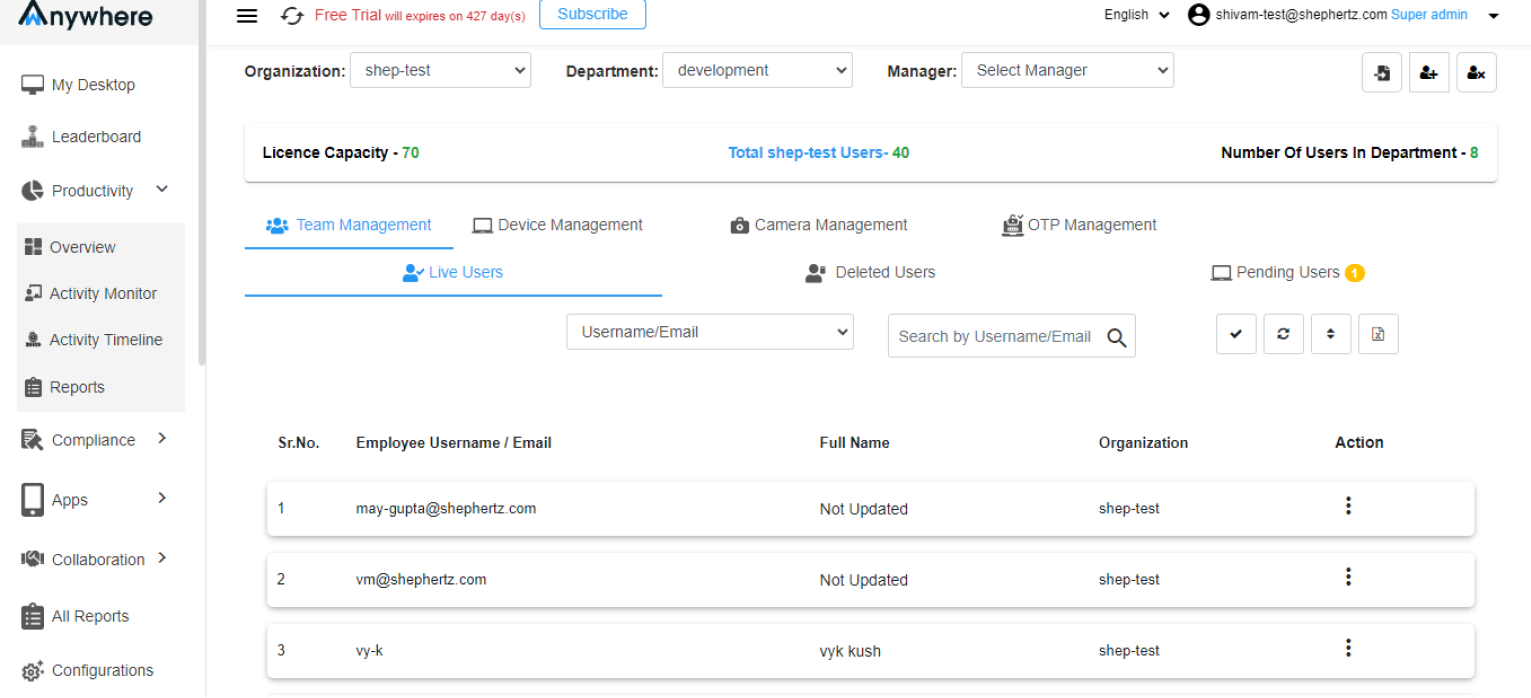
Open User Management
Click on ‘User Management’ in the menu on the left side.
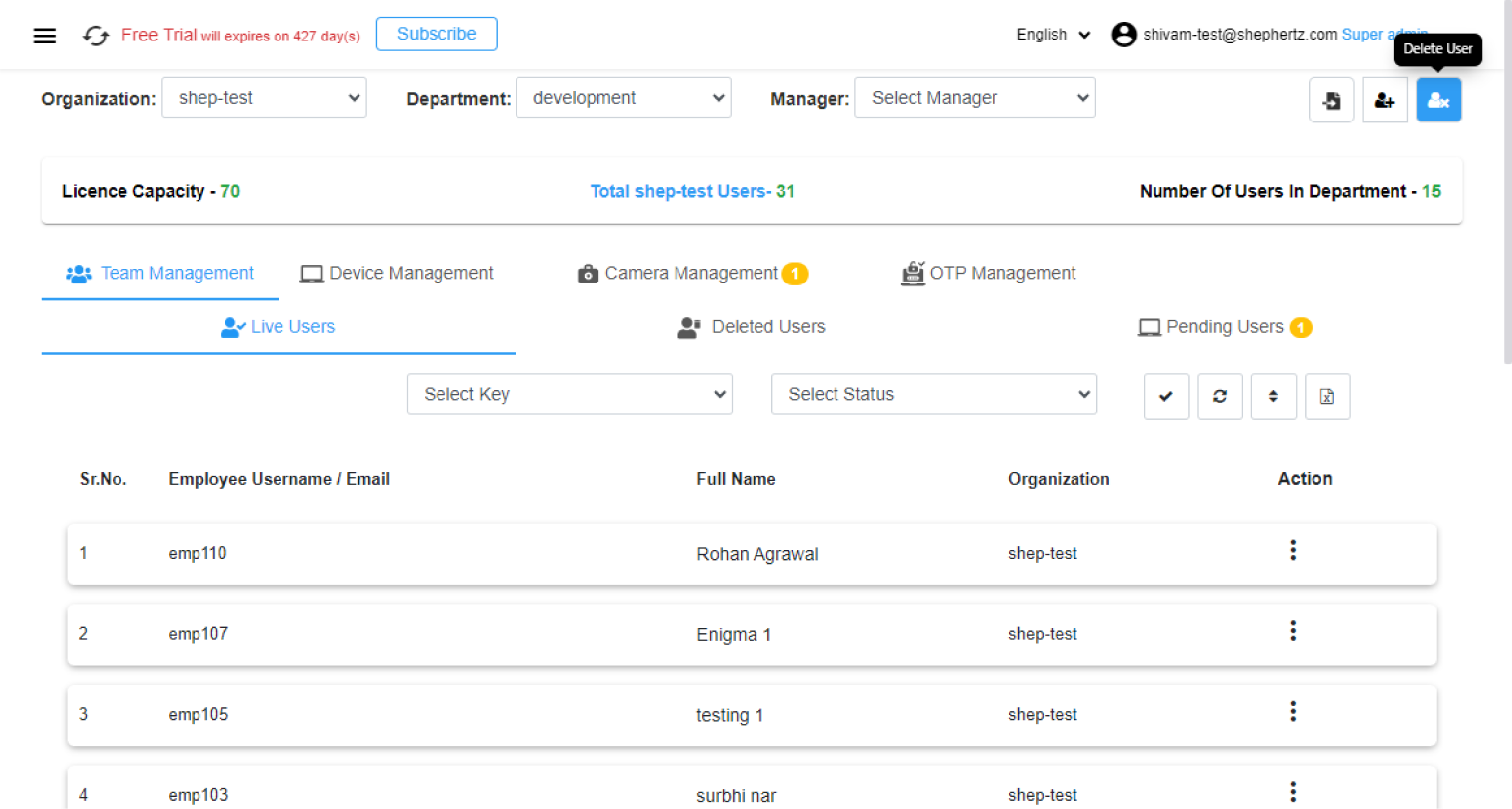
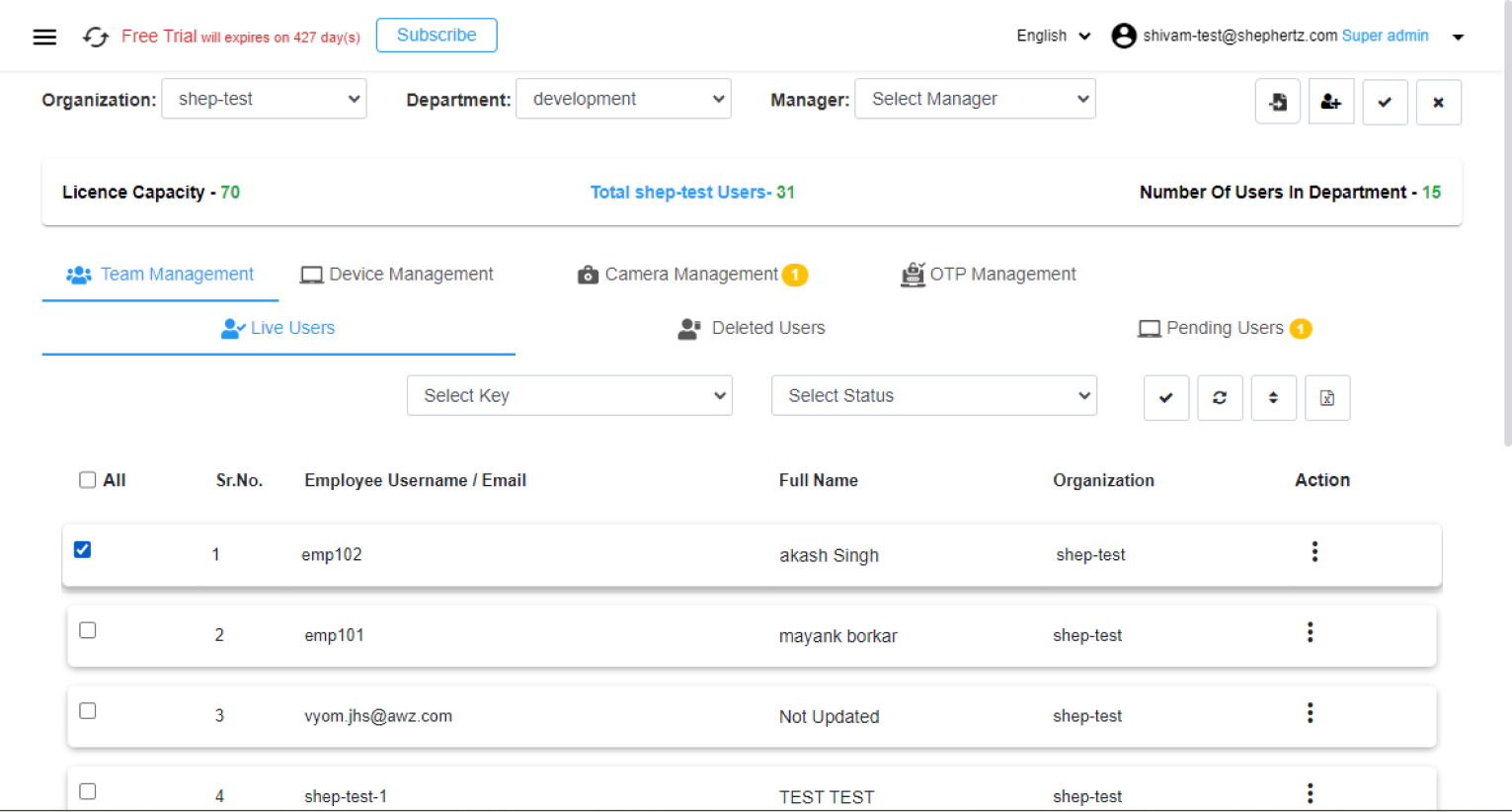
Select Delete User
Under ‘User Management’, click on the ‘Delete User’
icon at the top right of the window.
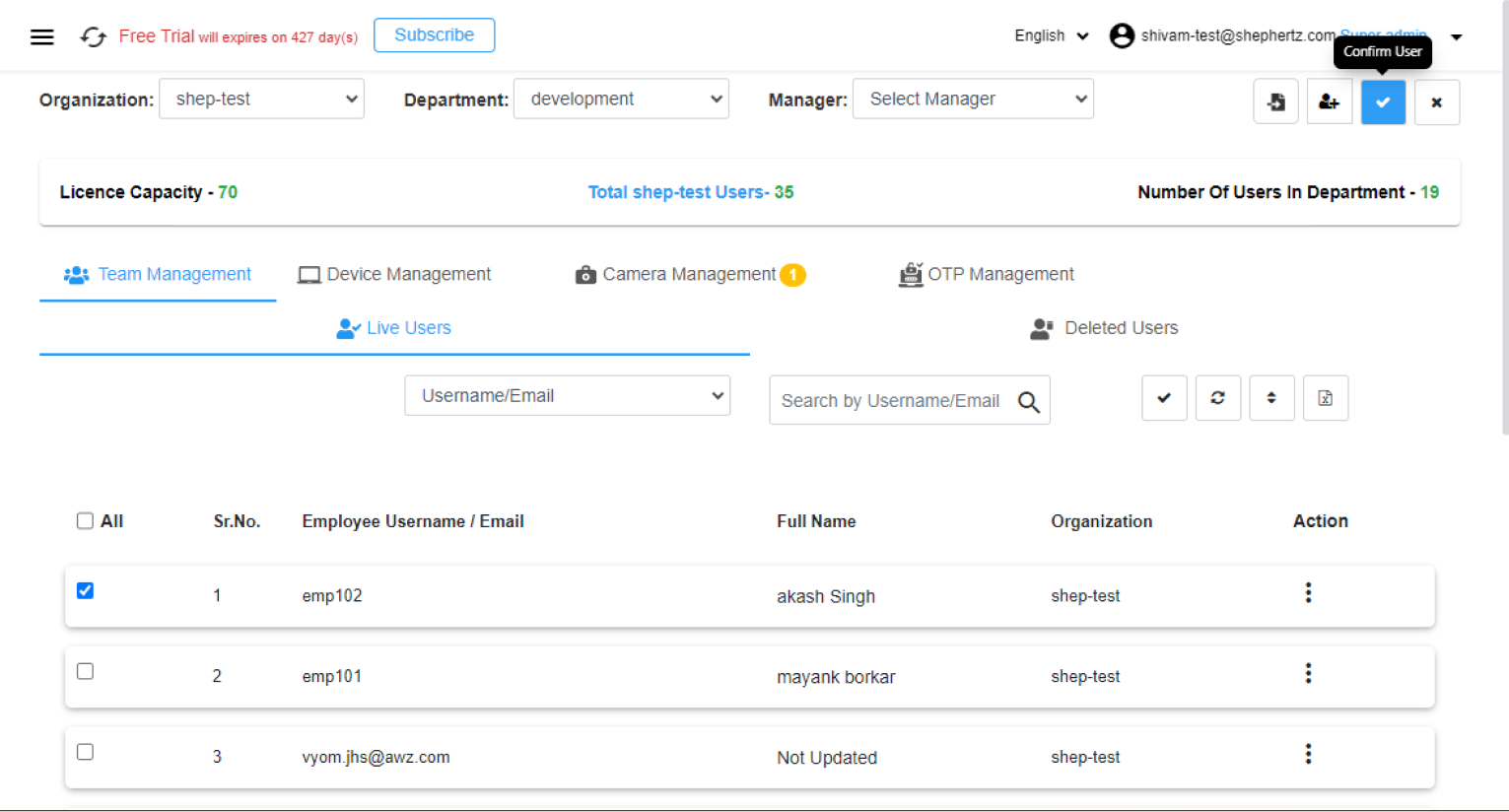
Select Users
Select multiple users to be deleted and click the
Apply button.
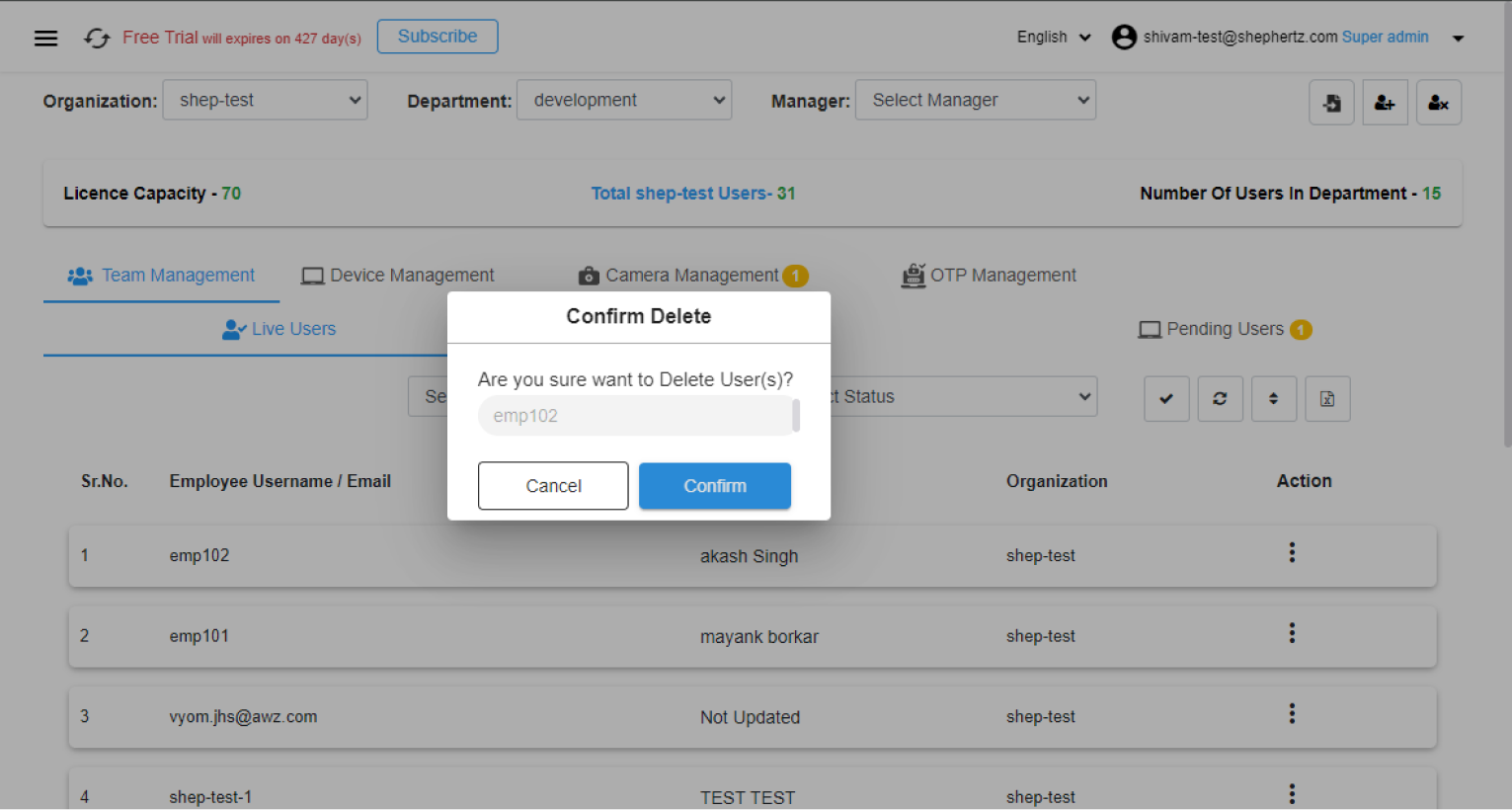
Confirm Deletion
The selected users will be visible in the dialog box.
Click ‘Confirm’ to delete them.
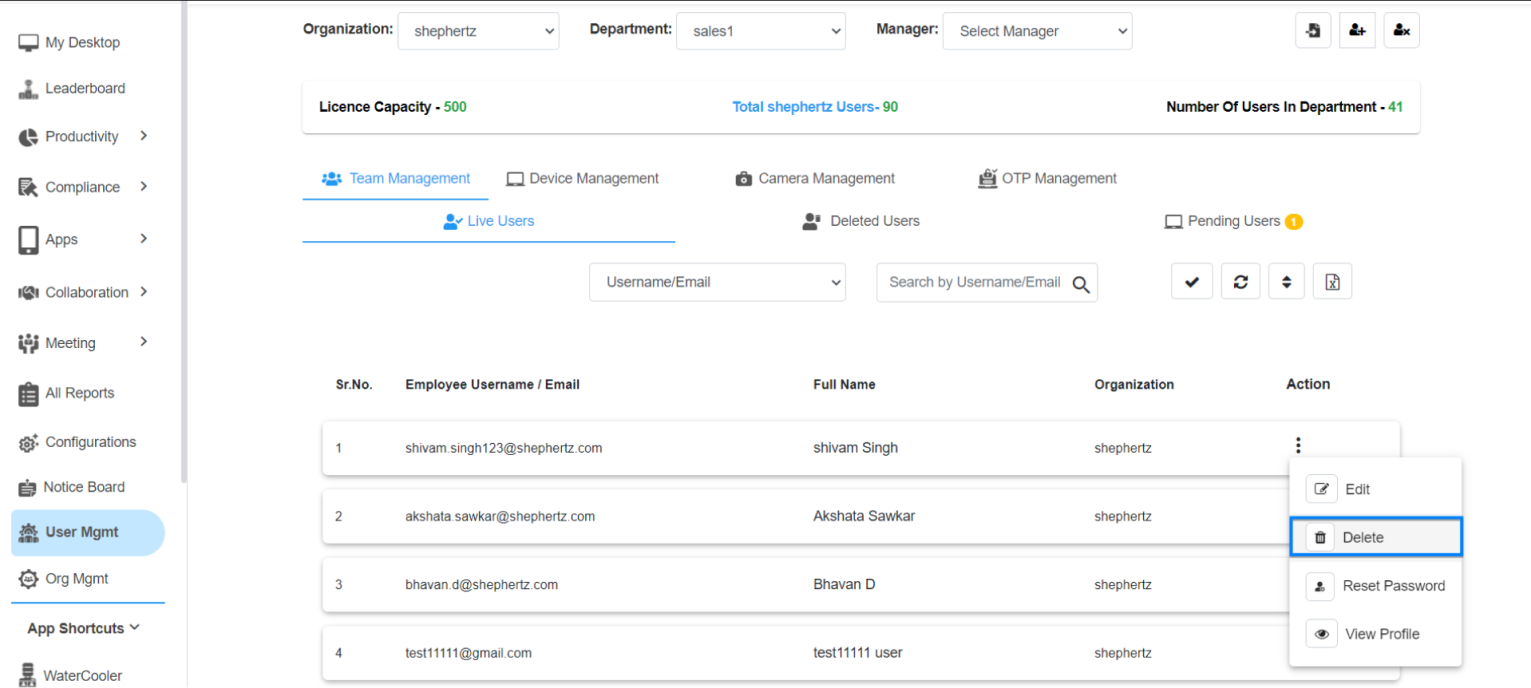
Delete from Actions Menu
Click the three dots under ‘Action’ and select ‘Delete’.
Proceed with Deletion
Click on the ‘Delete’ icon to continue.
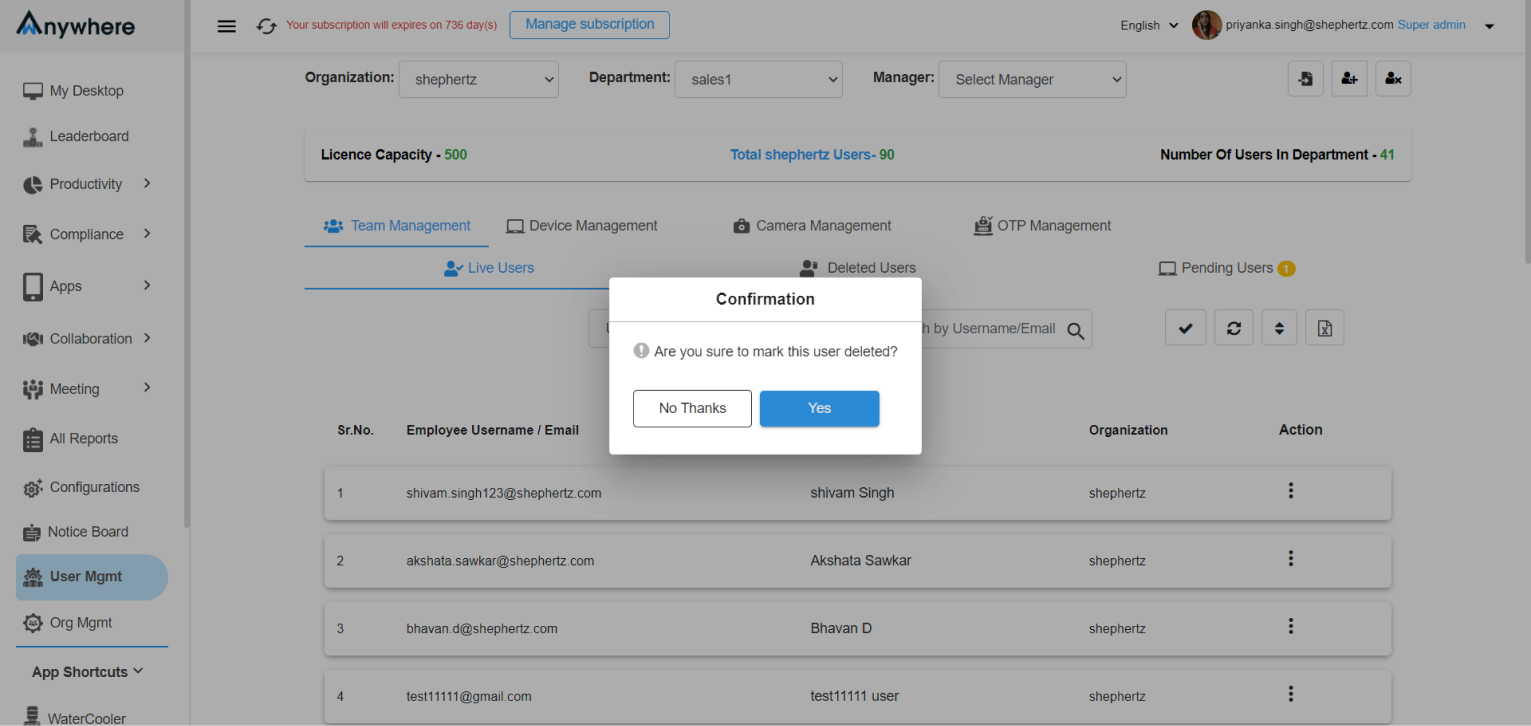
Approve Deletion
Select ‘Yes’ from the dialogue box.
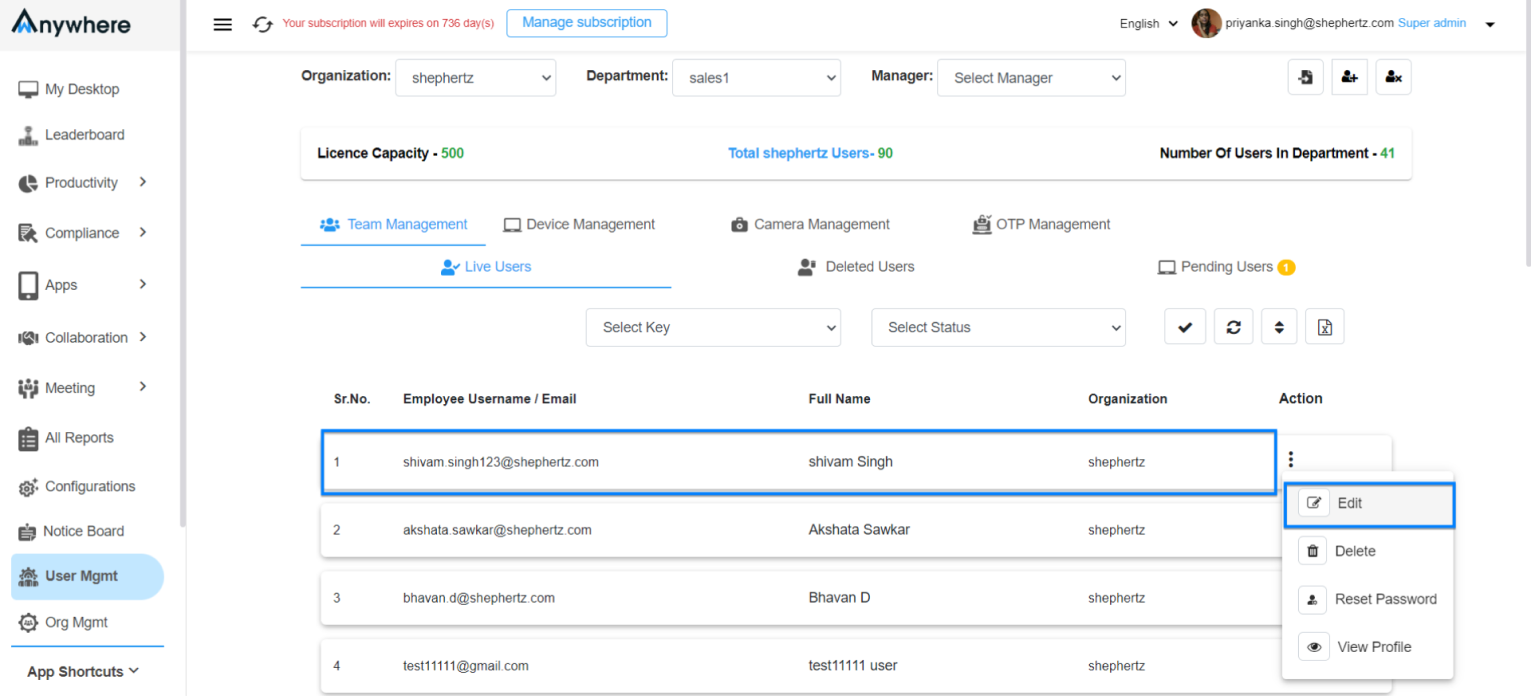
Edit User Alternative
Click the three dots under ‘Action’ and select ‘Edit’.
Delete from Profile Page
Open the user profile and click the Delete button
available at the bottom-right corner.
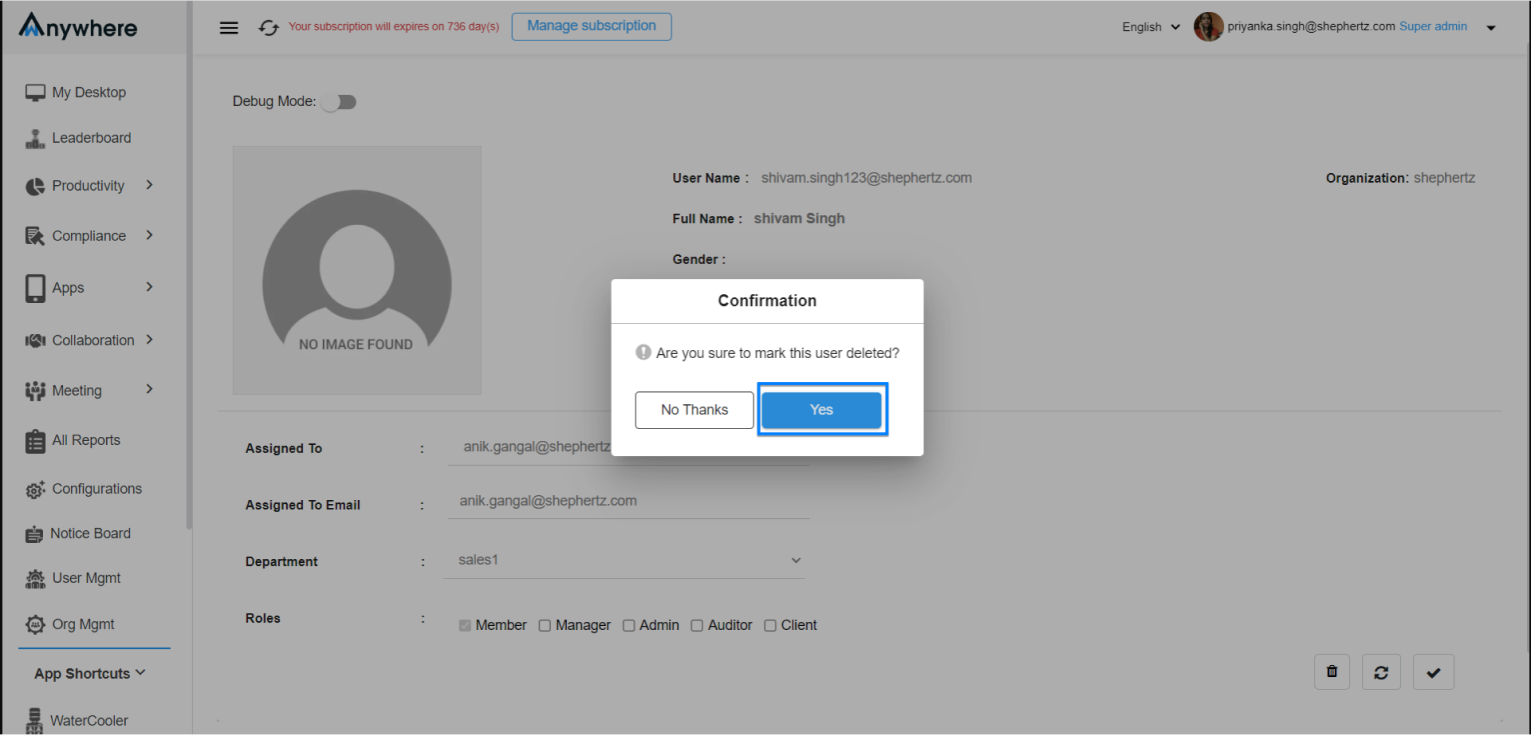
Confirm Again
Click ‘Yes’ to delete the user.
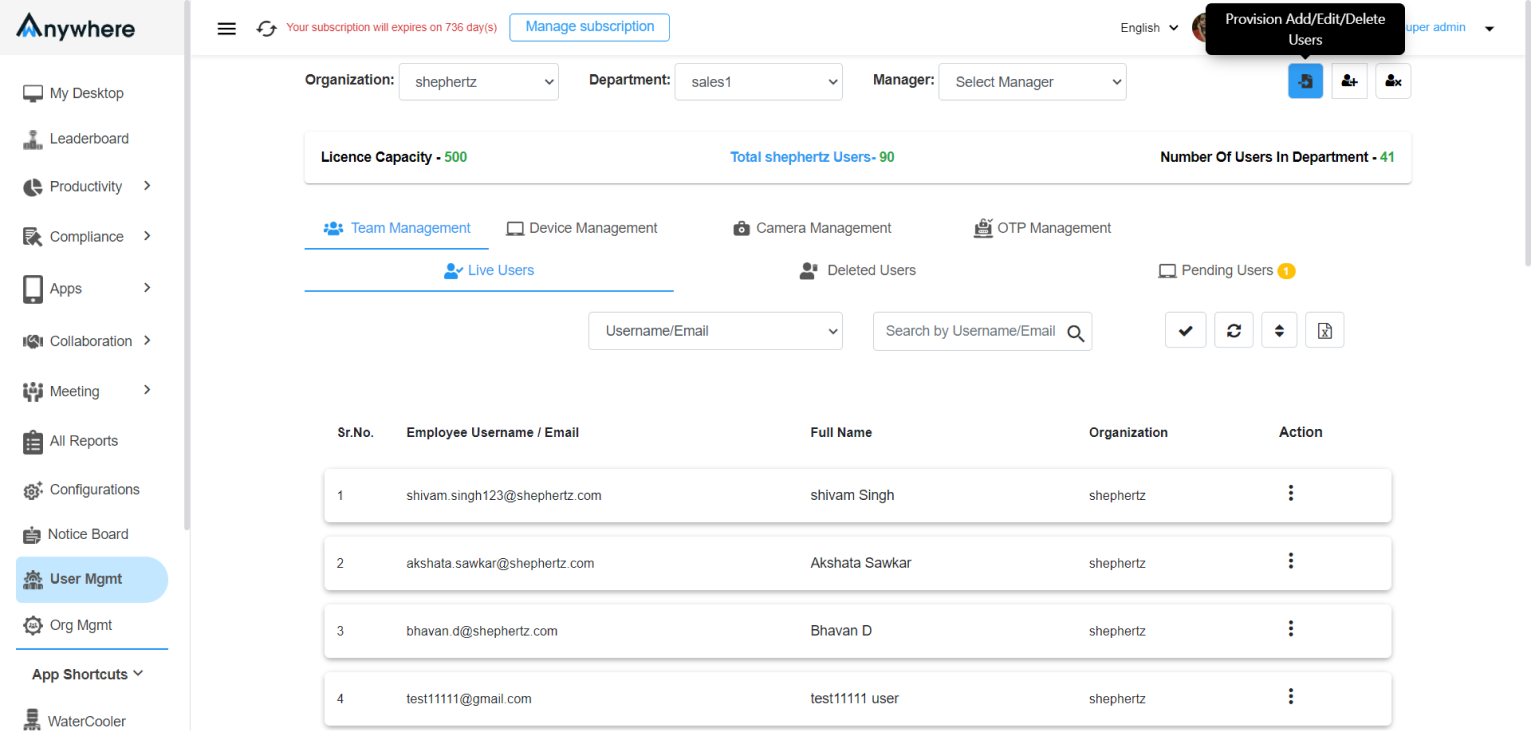
Bulk User Deletion
Navigate to the side menu and click the first icon
at the top-right corner.
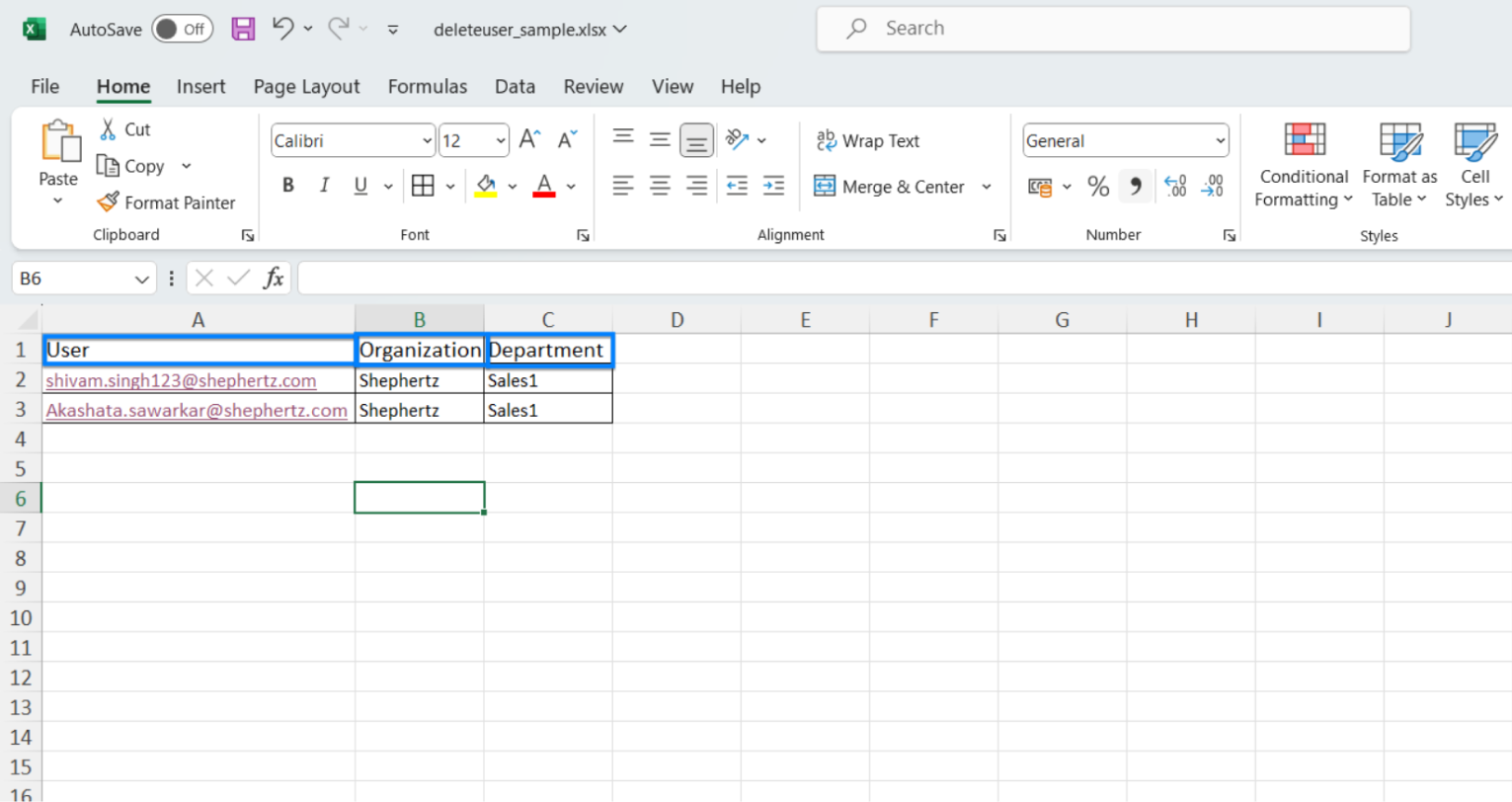
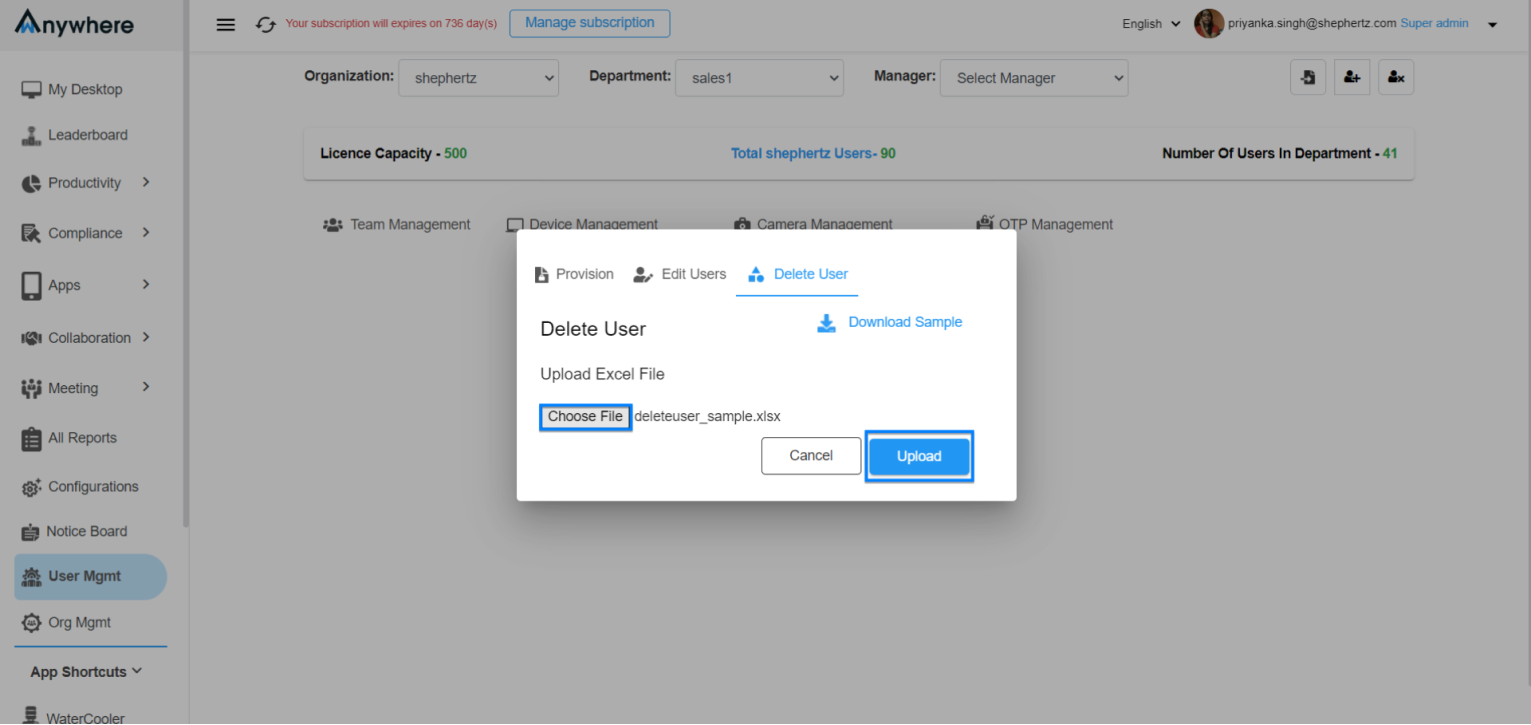
Upload Deletion File
Download the sample file, enter user details,
upload it and proceed with deletion.
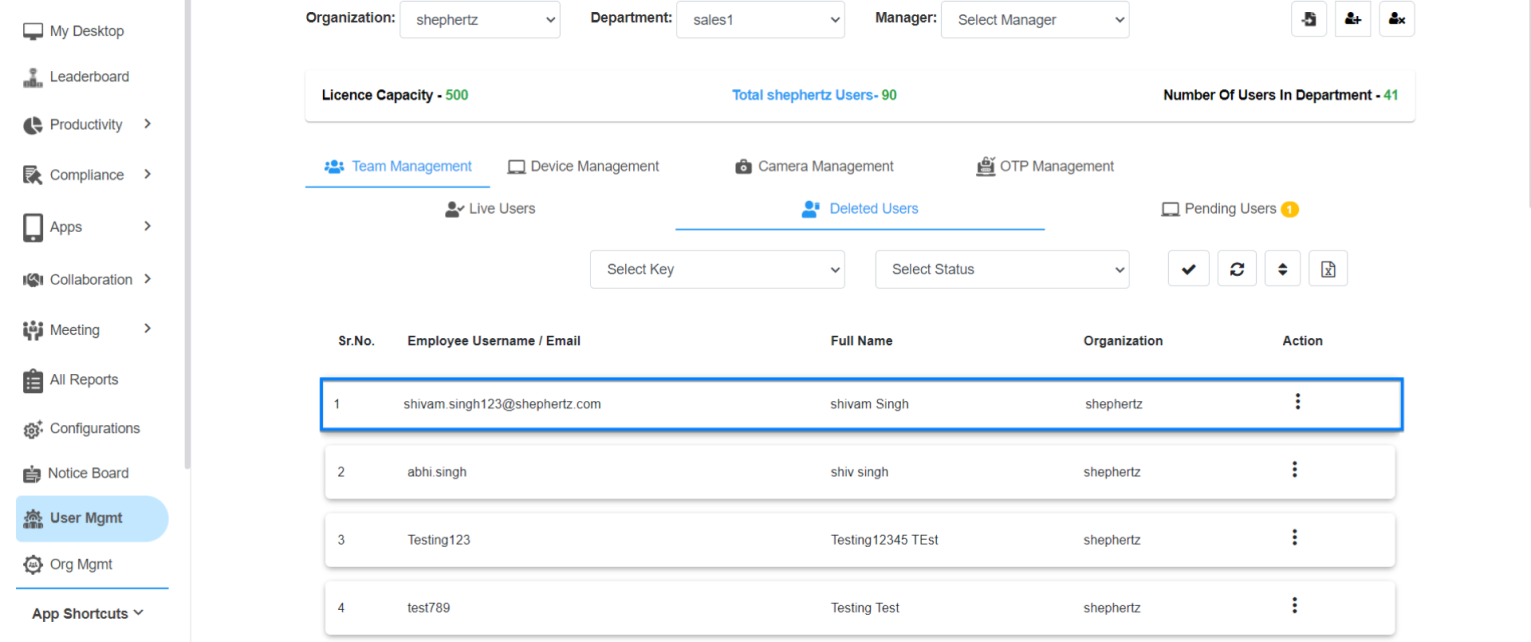
Deleted Users List
All deleted users appear under ‘Deleted Users’.
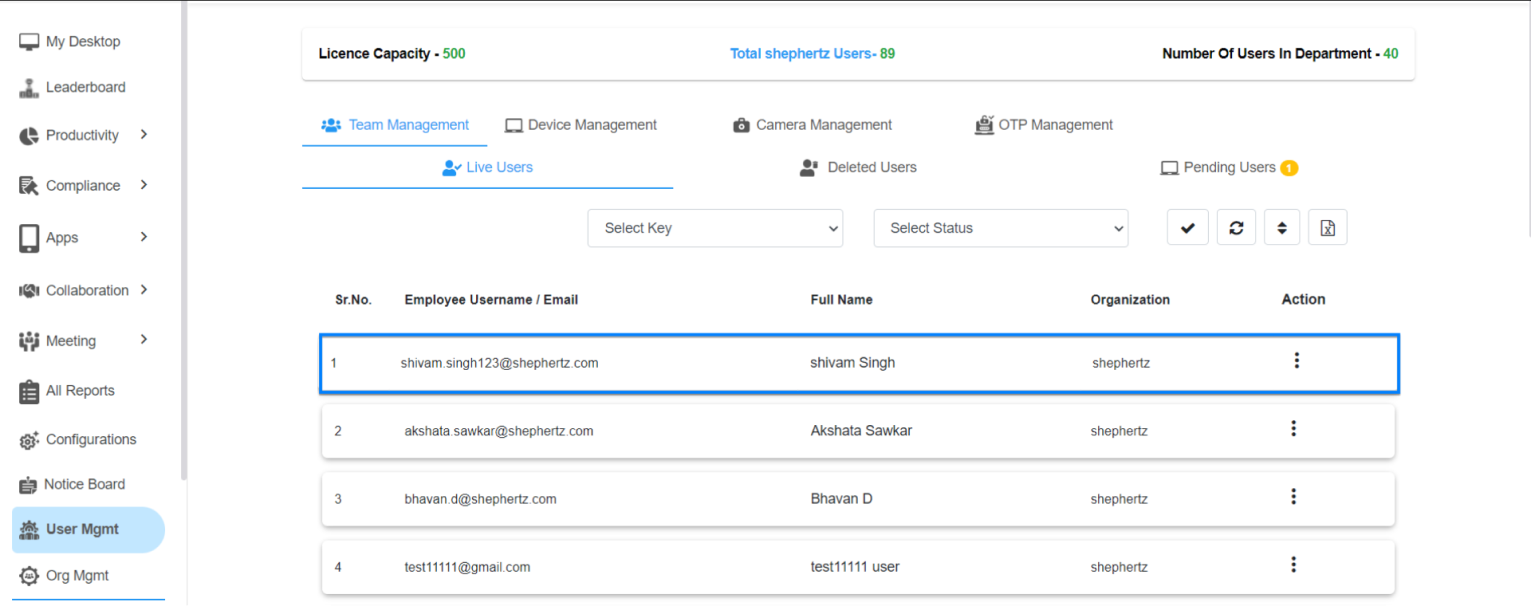
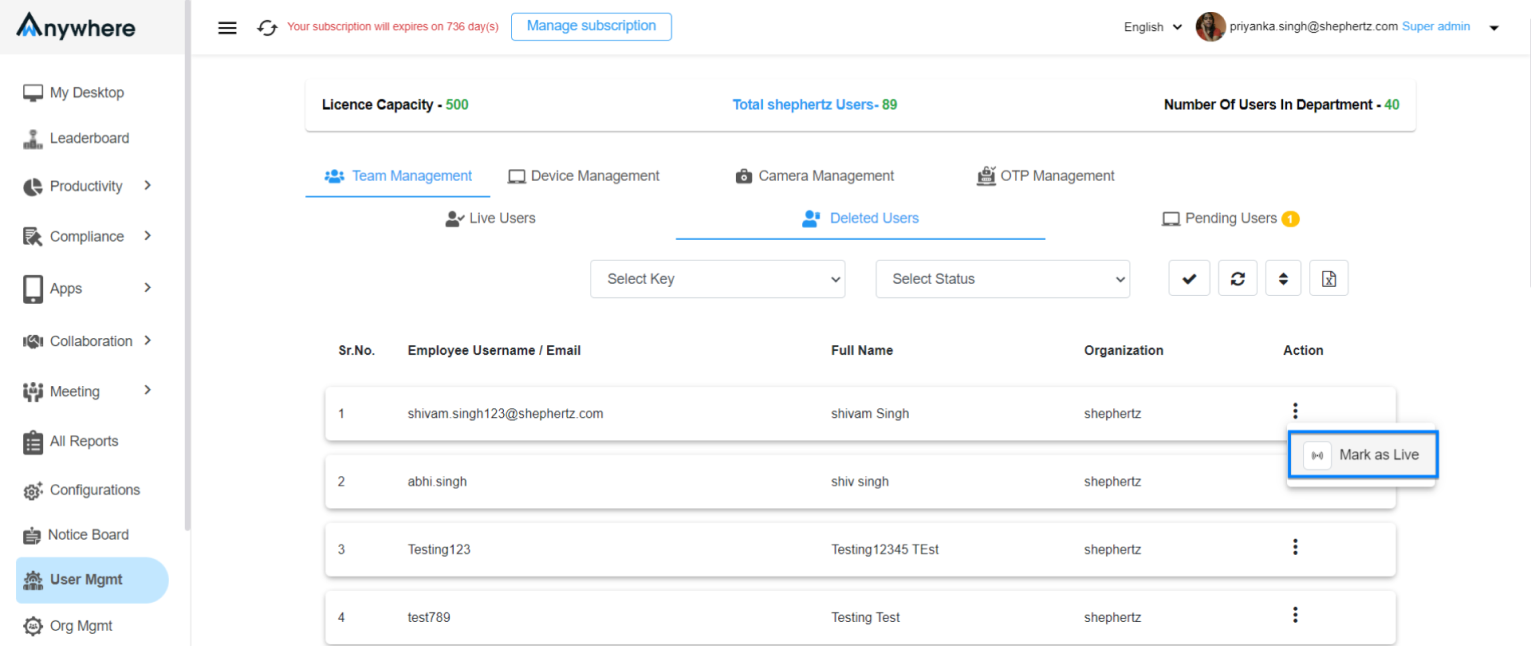
Restore Deleted Users
Deleted users can be marked live again by clicking
the three-dot action menu.
Need Assistance?
For more queries, please contact
cst@shephertz.com


