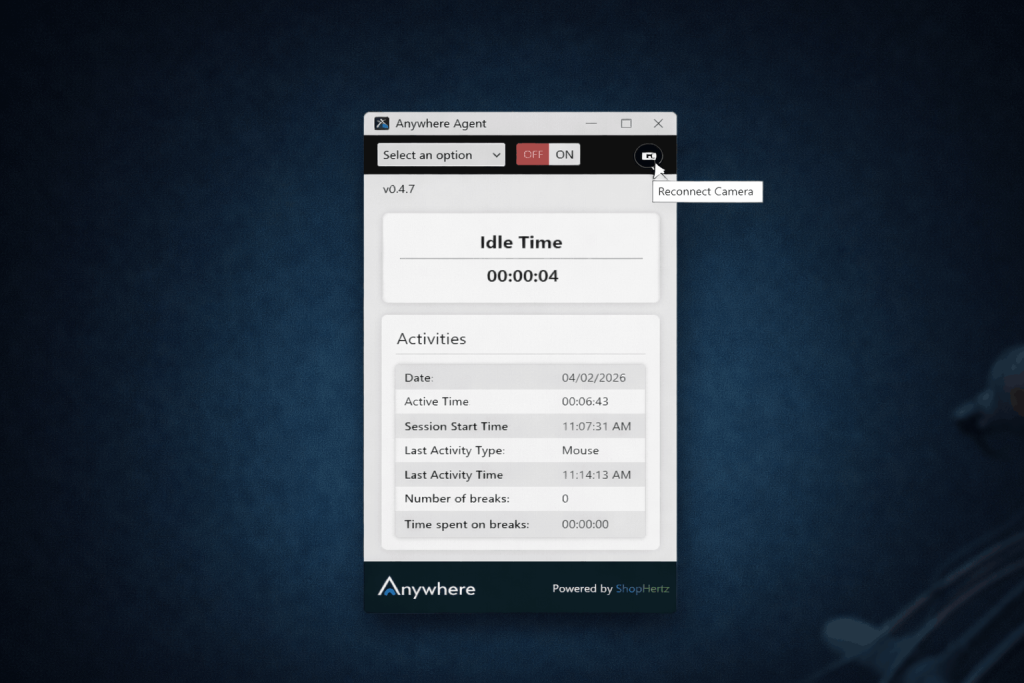
How can I release my camera for facial registration and training?
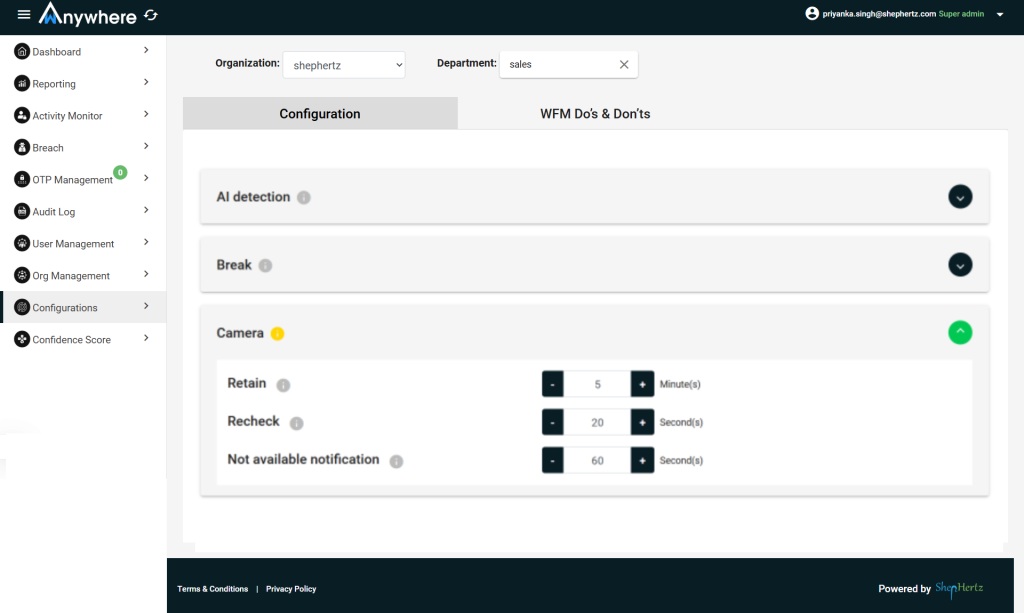
Step-1: Please set the retain and recheck and Not available notification time in the configuration.
Retain: Application will release the camera for a defined interval to take control by other application
Recheck: Once the retain threshold crossed application will automatically check in this defined interval to take the control of the camera
Not available notification: Not available notification will display on the agent app
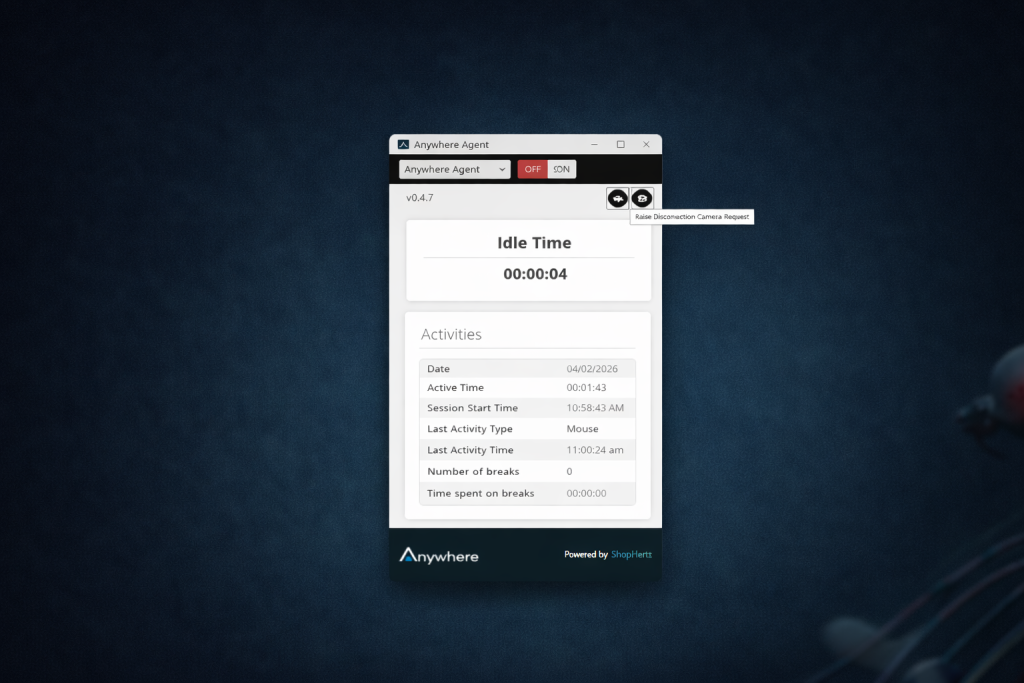
Step-2: Ask the users to raise a disconnection request to release the camera from the wAnywhere agent application
Step-3: Camera disconnection requests are visible to authorized administrative roles (Manager, Admin, and Super Admin) under User Management > Camera Management
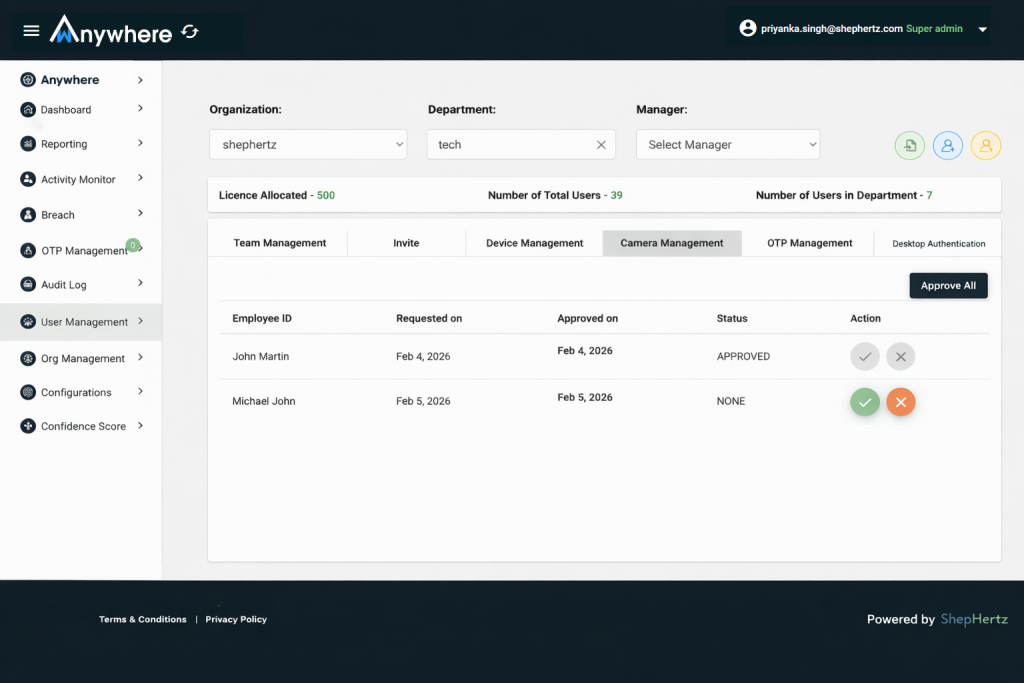
Step-4: Users will be notified of the approval or rejection of their requests via an on-screen confirmation dialogue
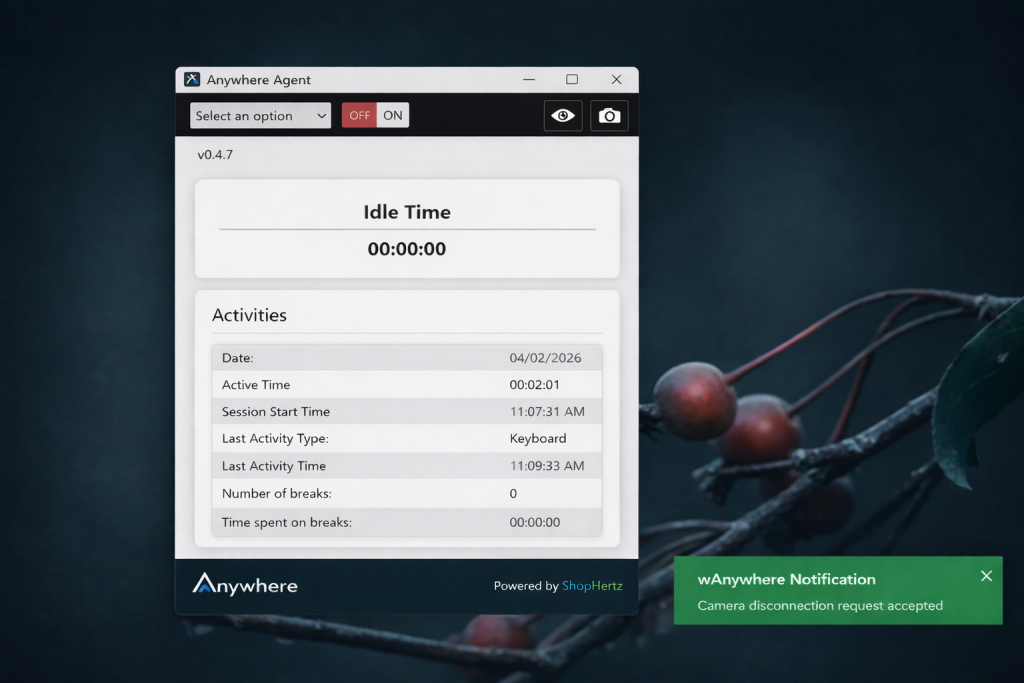
Step-5: Once a request is approved, the ‘Raise Disconnection Request’ button will dynamically update to ‘Release Camera.’ Users may then click this button to manually terminate the camera session
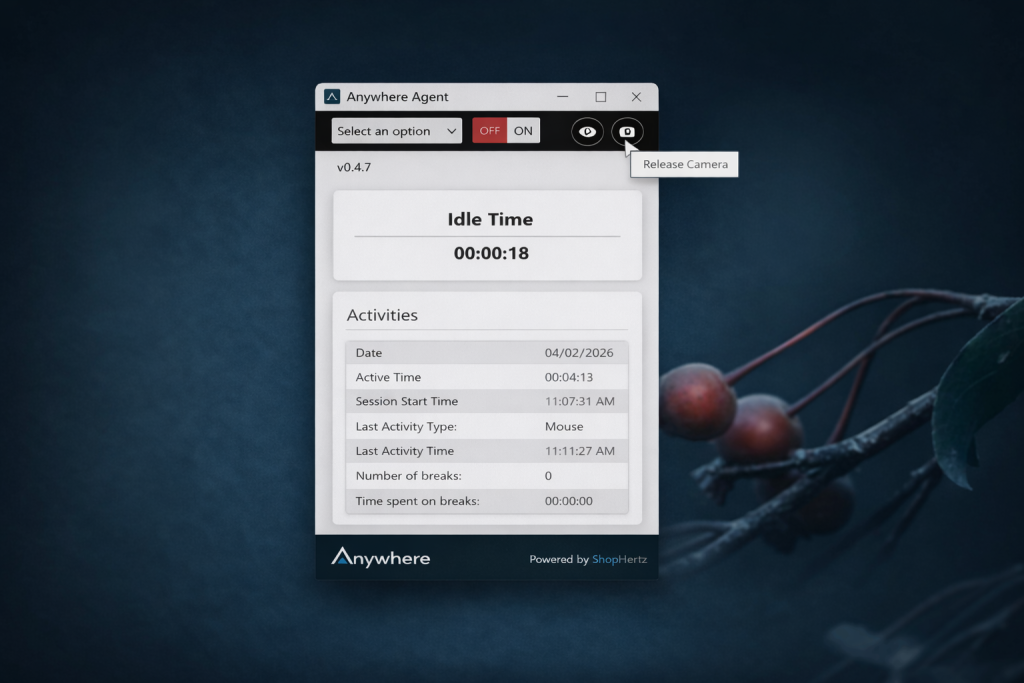
Step-6: Releasing the camera restores its availability across the system, enabling the user to access the video feed in other installed applications. (e.g., Zoom, Microsoft Teams).
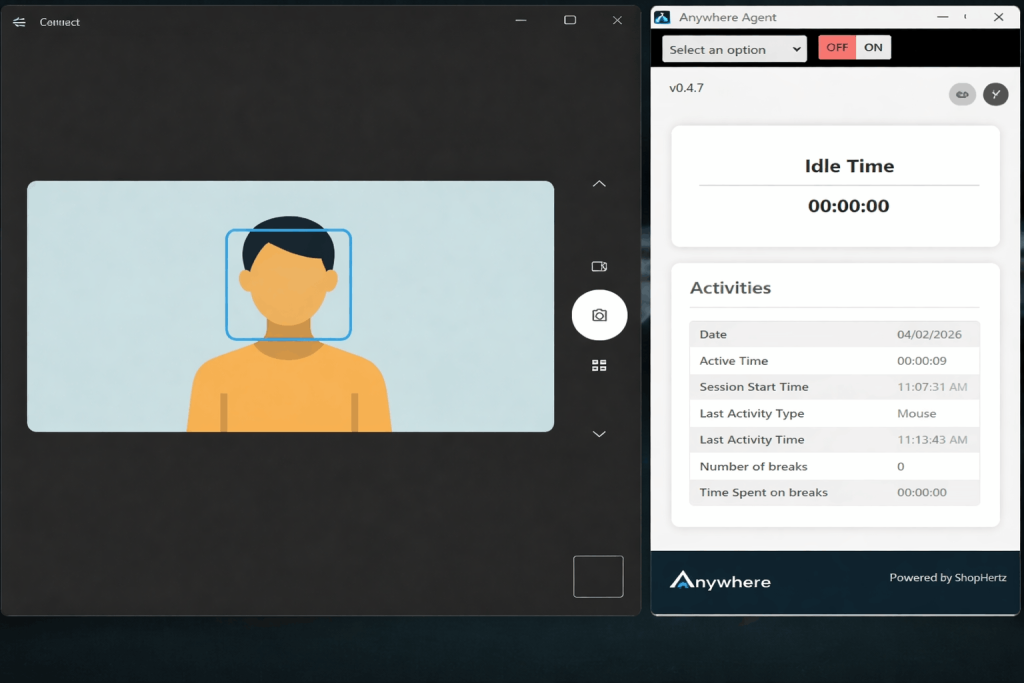
Step 7: Users can click ‘Reconnect’ to restore their camera feed instantly. If left idle, wAnywhere will automatically reconnect according to your Retain Time settings, as long as the camera remains available and is not in use by another program