

 Set as a preferred Google source
TL;DR
- Desk-level tailgating happens when another person can see an employee’s screen while sensitive data is open. Building access control does not cover it.
- Second-person detection uses the workstation webcam to flag when more than one face is in frame, then alerts managers or blocks the screen.
- It differs from unknown person detection, which checks whether the person at the screen is the enrolled employee. Regulated teams usually run both.
- wAnywhere applies one policy across office, hybrid and remote seats, with manager or OTP unlock and a logged record of every event.
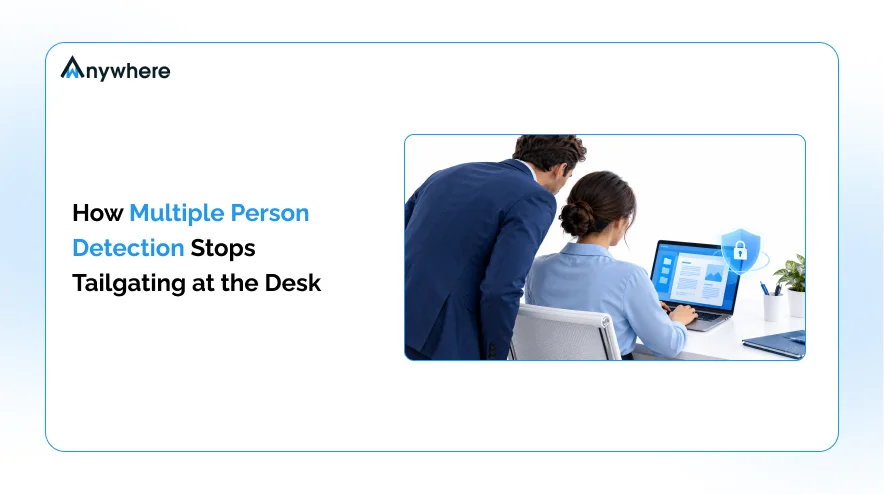
It is 11 a.m. on a busy operations floor. A claims processor has a customer’s medical history open on one screen and payment details on the other. A colleague from another team leans on the back of her chair to ask about lunch. For the next two minutes, someone with no clearance for that account can read everything on her screen, and nothing in the security stack notices.
Organizations spend heavily on badge readers, firewalls and endpoint tools, yet very few have a control for what happens in the small space around an employee’s monitor. That gap is desk-level tailgating and multiple person detection is built to close it.
Here is what this guide covers:
- What desk-level tailgating means and how it differs from tailgating at a building entrance
- Why an extra person at a workstation creates a real data exposure risk
- How AI-based detection at the workstation works, step by step
- What happens after a second person is detected
- How wAnywhere helps security teams enforce a one-viewer-per-screen policy

One Screen. One Verified Viewer.
wAnywhere spots a second face at the desk, alerts the manager and locks the screen until it is cleared.
What Is Tailgating In Workplace Security?
Tailgating is when someone gains access to a restricted space, or to restricted information, by riding on an authorized person’s access instead of presenting their own credentials.
In short:
- Tailgating relies on being near an authorized person, not on stolen credentials
- It is usually discussed in the context of doors, gates and turnstiles
- The same pattern can play out at a desk, where the restricted area is the screen itself
Most tailgating detection tools were built for entrances. Desk-level tailgating applies the same idea to the employee’s immediate workspace, where another person moves into view while the employee is working with sensitive information.
Physical Tailgating Vs Desk-Level Tailgating
Physical tailgating happens at the door. An unauthorized person slips through a secured entrance behind an employee without badging in. Security gates, turnstiles, access-control systems and people-counting sensors are designed to block or flag this, and conventional tailgating detection compares the number of people passing through with the number of credentials presented.
Desk-level tailgating happens after everyone is already inside, or in a home office with no entrance control at all. Another person appears beside or behind the workstation and can read the screen. The employee is logged in legitimately, so no access system raises a flag.
Put simply, a secured building entrance does not secure the information displayed at every workstation behind it.
Why Is Desk-Level Tailgating A Data Security Risk?
Authentication tells you who logged in. It says nothing about who else is looking at the screen. An authenticated workstation can still show customer records, card details or patient files to anyone close enough to read them.
People sit at the centre of this problem. The Verizon 2026 Data Breach Investigations Report found the human element was present in 62% of breaches, drawn from more than 22,000 confirmed breaches across 145 countries. Desk-level exposure is one of its quieter forms.
Shoulder Surfing And Unauthorized Viewing
Shoulder surfing needs no password, no malware and no technical skill. A person standing nearby can read customer names and contact details, account numbers, payment records, medical information or internal business documents. Even brief exposure can become a privacy concern, and it leaves no trace in system logs.
Photographing Or Recording Confidential Information
A phone camera turns a glance into a permanent copy. To be precise, desk-level detection identifies the presence of an additional person, not whether that person took a photo. Mobile detection is the separate control that flags phones aimed at a screen.
Employee Data Theft And Insider Risk
Not every extra person at a desk has bad intent, and most do not. Exposure tends to follow a few patterns. A colleague may deliberately read data they are not cleared for. An employee may let someone else use or watch their workstation. A visitor may see records by accident, or a remote employee may be working in a shared room. A detection event is a signal to review, not proof of theft.
Compliance And Client Confidentiality Concerns
BFSI, healthcare and BPO teams often work under client contracts and internal policies that limit who may view certain data. Those obligations are hard to evidence without visibility into who was at the screen, so clear workstation policies backed by a control that records exceptions make audits simpler.
The financial stakes keep rising too. IBM’s Cost of a Data Breach Report 2026 puts the global average cost of a breach at USD 4.99 million, up 12% on the previous year and the highest figure the report has recorded.
Also Read: What Is Shoulder Surfing And How To Stop It At Work
How Does Multiple Person Detection Work?
Multiple person detection uses AI-powered analysis of the workstation webcam to identify when more than one person is visible in front of an employee’s screen. When a configured policy is triggered, the system alerts the right people and can block the screen until the session is cleared.
The process runs in five stages:
- Enrol the employee and set up the workstation
- Detect additional faces through the webcam
- Alert managers in real time
- Block the screen and require a verified unlock
- Log the event for review
1. Employee Enrollment And Workstation Setup
During deployment, the organization configures each workstation and links it to an employee profile. In wAnywhere, administrators enrol each employee’s face ID during onboarding through the facial recognition system, which gives the system a verified reference for that seat.
2. AI-Based Detection At The Workstation
The workstation camera provides the visual input. During an active session, the agent checks the webcam frame at regular intervals and counts the faces in it. The focus is narrow by design. It watches the space in front of one screen and does not count visitors in a building or track people across an office.
3. Real-Time Alerts
When a second face appears and the configured condition is met, managers or other stakeholders receive an email or in-app notification. Teams can then act while the situation is still happening.
4. Configured Screen Blocking And Verification
Organizations can configure wAnywhere to block the screen as soon as more than one person is detected. Unlocking then requires manager approval or a one-time password, depending on how the policy is set. This shortens the window in which sensitive information stays visible. It cannot guarantee that nothing was seen before the block took effect.
5. Event Logging And Investigation
Each detection is recorded with the user, device and time, and sits in wAnywhere’s audit trail. Security teams can then review the context. A supervisor running a coaching session is very different from a visitor reading a customer file, and the record helps teams tell the two apart.
Multi-Person Detection Vs Unknown Person Detection
These two capabilities sound alike but answer different questions. One asks whether anyone else is at the screen, the other whether the right person is.
| Parameter | Multi-Person Detection | Unknown Person Detection |
| What it identifies | More than one person visible around the workstation | A person who does not match the verified employee profile |
| Main security concern | Additional people may view sensitive information | An unrecognized person may be using or viewing the workstation |
| Typical scenario | Someone stands beside an employee while confidential data is open | Someone other than the registered employee sits at the workstation |
| Security response | Alert or configured screen blocking | Alert, black screen, OS lock or OTP verification, depending on configuration |
| Main purpose | Reduce exposure from extra people around the desk | Confirm the person at the workstation is the authorized user |
Second-person detection does not decide whether the extra person is authorized. It only flags that more than one person is present. Unknown person detection checks whether the face at the screen matches the verified employee. Each catches what the other misses, so regulated teams usually run both.
Also Read: How Multiple Person Detection Software Works Using AI Webcam Detection
How Second-Person Alerts Help Prevent Employee Data Theft
No single control stops every insider incident, but desk-level detection shrinks the opportunities for casual or deliberate viewing and gives security teams evidence to act on.
Identifies Additional People Around Sensitive Workstations
Extra viewers no longer go unnoticed on a busy floor or at home.
Reduces Shoulder Surfing Exposure
Alerts and configured screen blocking cut short the time another person has to read what is on the screen.
Supports Restricted Workspace Policies
Many organizations require employees to work alone when handling certain data, such as card details or patient records. Detection enforces that rule instead of leaving it in a handbook.
Creates Visibility For Security And Compliance Teams
Event records help managers review possible violations, spot recurring patterns at particular seats or shifts, and refine policies over time.
Supports Office, Hybrid And Remote Work
The same concern exists on corporate floors, home offices and shared workspaces, and one policy that follows the employee is easier to manage than separate rules per location.
Where Is Desk-Level Person Detection Most Useful?
The value is highest wherever screens routinely display data that only certain people should see.
BPO And Contact Centers
Agents spend whole shifts looking at customer records, payment details and client data. Keeping each seat limited to the verified agent protects customers and the client contract alike, which is why it sits at the core of wAnywhere’s approach to BPO security.
Banking And Financial Services
Account information, transaction details, loan records and identity documents pass across BFSI screens all day. Limiting who can view those screens supports the access rules banks already apply to their systems.
Healthcare Organizations
Coders and claims processors in healthcare operations access patient information that should not be visible to anyone else in the room.
IT And Enterprise Operations
IT teams work with source code, credentials, infrastructure details and confidential project files. Workstation-level visibility complements endpoint controls that cannot see the physical desk.
Remote And Hybrid Teams
At home, the extra person might be a family member, roommate or visitor. Detection works on any remote or hybrid seat with a working webcam, but it can only see what falls within the camera’s field of view, so clear policy and employee awareness still matter.
Also Read : Insider Risks Vs Insider Threats And How AI Security Can Help
How wAnywhere’s Multiple Person Detection Strengthens Workstation Security
wAnywhere treats the screen as a secured space in its own right. The capability sits within its wider AI security and compliance suite and is built around a set of documented features:
- AI-powered detection that flags when more than one face is in the workstation camera’s view
- Real-time alerts to managers by email or in-app notification
- Configurable screen blocking when a second person is detected
- Manager approval or OTP to unlock, depending on configuration
- Bystander blurring, so people passing in the background are not exposed in captured images
- One policy across office, hybrid and remote seats
- Cloud or on-premise deployment, with agents for Windows, macOS and Linux and a Chrome extension
Together, these turn a written rule like “only the assigned employee views this data” into something checked throughout the session, not just at login. If your client contracts demand that only cleared staff see their data, the second-person detection feature page shows how each response is configured, and a short wAnywhere demo lets you watch it lock a live session.
Combining Second-Person Detection With Other Security Controls
Desk-level detection works best as one layer among several, each covering a different risk:
- Unknown person detection confirms the person at the screen is the enrolled employee
- Facial authentication verifies identity before work begins
- Mobile detection flags phones aimed at the screen
- Not at desk detection locks the screen when the employee steps away
- Clean desk compliance checks that the physical workspace is free of sensitive material
- USB detection and Bluetooth detection control which devices can connect
- Copy-paste restriction stops data leaving through the clipboard, rounding out wAnywhere’s approach to data breach security
Best Practices For Implementing Desk-Level Detection
The technology is the easy part. Rolling it out fairly takes some planning.
Define Clear Workstation Security Policies
Spell out which processes require employees to work alone and which workstations fall under stricter rules.
Identify High-Risk Workstations
Start with seats that handle customer, financial, healthcare or confidential business data rather than switching everything on at once.
Configure Appropriate Detection Responses
Match the response to the risk. An alert may be enough for some teams, while seats handling card data may justify an automatic screen block and OTP unlock.
Train Employees On Workspace Security
Explain why the policy exists and what to do when the screen locks.
Review Alerts And False Positives
A supervisor, IT technician or trainer may have a perfectly legitimate reason to be at the desk. Review every alert before treating it as a violation.
Maintain Transparency And Privacy
Tell employees that detection is running, explain what is captured, keep controls proportionate to the risk and follow the privacy and employment rules in every country where you operate.
Secure Every Workstation, Not Just The Front Door
Locking the entrance does nothing for a customer record on an open screen with two people looking at it. Desk-level tailgating creates room for shoulder surfing, unauthorized viewing and, in some cases, insider data loss. Multiple person detection gives organizations a way to see when more than one person is at a workstation and respond with alerts or configured screen controls. wAnywhere brings that to office, hybrid and remote seats under a single policy, and the quickest way to see how it fits your environment is to book a wAnywhere demo.
Your Front Door Is Locked. Are Your Screens?
Bring desk-level security to every office, hybrid and remote seat with wAnywhere.
Frequently Asked Questions
How Does It Prevent Tailgating At The Desk?
It spots an extra person at the workstation and can trigger an alert or a configured screen block. It addresses desk-level tailgating, not entry through building doors.
What Is The Difference Between Multi-Person Detection And Unknown Person Detection?
Multi-person detection flags more than one person at the screen. Unknown person detection flags a person who does not match the verified employee.
Can It Help Prevent Employee Data Theft?
It reduces opportunities for unauthorized viewing and supports investigations. On its own, it does not prove or prevent every case of insider data loss.
Does It Work For Remote Employees?
Yes. wAnywhere applies it across office, hybrid and remote seats, as long as the webcam is on and the person is within its field of view.
What Happens When More Than One Person Is Detected?
wAnywhere alerts the manager and can block the screen. Unlocking needs manager approval or an OTP, depending on configuration.
Is This The Same As Physical Tailgating Detection?
No. Physical systems monitor entry through doors and gates, while desk-level detection watches for extra people at a single workstation.

Table of Contents
Boost productivity and compliance with wAnywhere
Read summarized version with