

 Set as a preferred Google source
TL;DR
Personal phones can copy a screen of customer data in seconds, and DLP, USB and network controls never see it happen. AI-powered detection on the existing webcam recognises a phone in view of a work screen, alerts a manager, can lock the screen and logs the event for audit. It needs no new hardware, covers office and remote seats alike, and works best as one layer alongside endpoint controls, clean desk rules and transparent employee policy.
A claims processor at a healthcare BPO has a patient file open: diagnosis codes, policy number, home address. Her phone sits face-up beside the keyboard. Raising it and taking a photo takes about two seconds, and nothing in the security stack records it. No file moved. No USB port was touched. No email left the network.
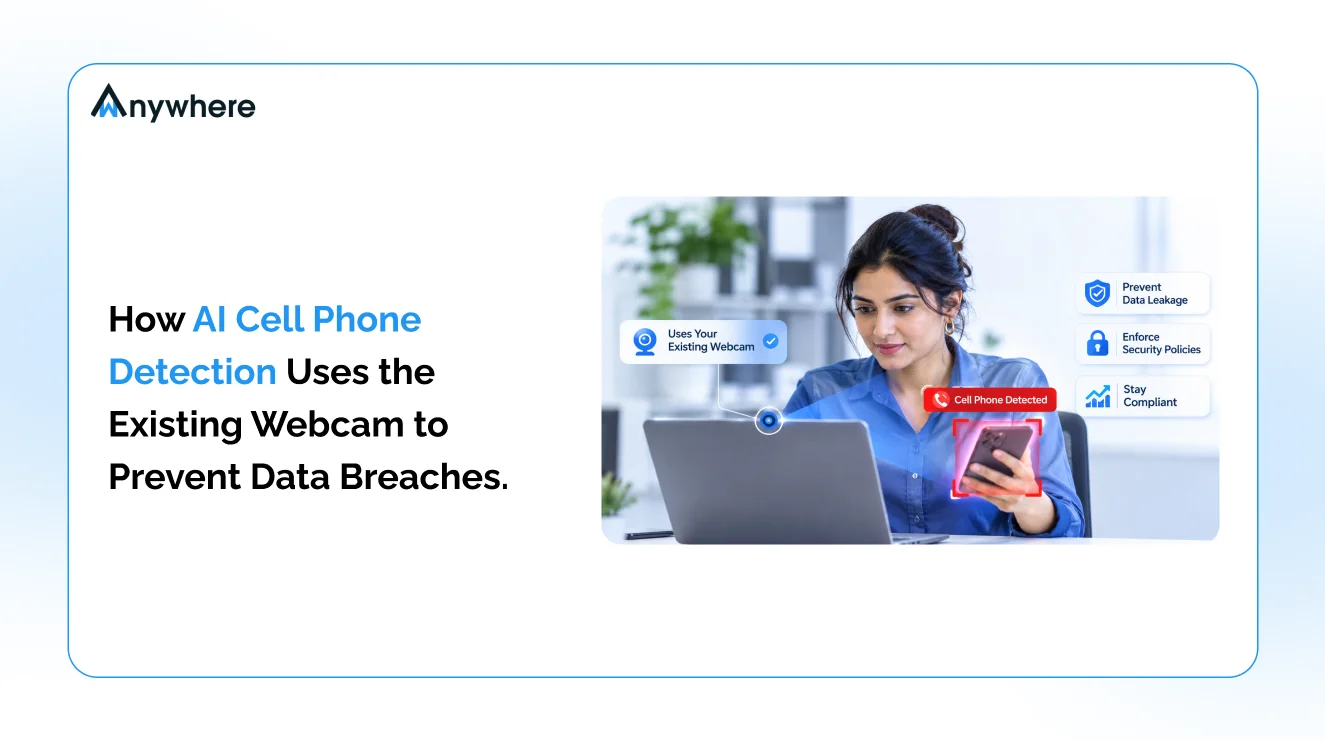
That is the gap cell phone detection is built to close. It uses AI to recognise a mobile phone in the frame of the workstation webcam and responds the moment one appears:
- A manager is alerted while the session is still live
- The screen can black out or lock, according to policy
- The event is logged with user, device and time for later review
Because it runs on supported webcams organisations already own, it adds a control at the desk itself, on office floors and home workstations alike, without mounting new cameras at every seat.

Your DLP Cannot See A Phone Camera. Your Webcam Can.
wAnywhere Mobile Detection spots phones at the desk, alerts managers and locks the screen before sensitive data is captured.
Why Mobile Phones Are An Overlooked Data Security Risk
Security spend favours network threats, yet people remain central to how breaches happen. The human element was involved in 62% of breaches analysed in the Verizon 2026 Data Breach Investigations Report, and the IBM Cost of a Data Breach Report 2026 puts the global average cost of a breach at a record USD 4.99 million. A phone at the desk is one of the simplest ways for a person, careless or deliberate, to move data out of a controlled environment.
How A Smartphone Can Capture Sensitive Business Information
A phone camera can read small text on a monitor from across a desk, so any open screen is a potential leak:
- Customer PII in CRM records, including names, addresses and ID numbers
- Payment card details, account statements and loan files
- Patient records, lab reports and insurance claims
- Pricing sheets, source code, contracts and board papers
A short video recorded while scrolling a record list captures far more than one photo. The Canadian Centre for Cyber Security lists video, photography and voice recording among the ways mobile devices can be used to acquire information near sensitive systems, and notes that this exfiltration can be intentional or unintentional.
Why Traditional Security Controls May Not Detect Screen Photography
DLP inspects data in motion: emails, uploads, clipboard actions and file copies. USB controls block removable storage. Network monitoring flags unusual traffic. All three assume the data leaves through the device. A photo of the screen does not. It travels from monitor to camera through the air, onto a phone on a network the organisation does not manage.
That is why camera-based detection belongs alongside these controls rather than in place of them. It watches the one exit they cannot see. CISA’s Mobile Device Cybersecurity Checklist for Organizations treats mobile device policy as a core part of enterprise security, and phones near sensitive screens deserve a place in that policy.
Also Read: 10 KPIs To Measure The ROI Of Mobile Phone Detection For Security And Productivity
What Is AI Cell Phone Detection?
AI cell phone detection is a computer vision control that recognises a mobile phone in a camera image and treats its appearance as a security event. When a phone shows up in the frame of a work device’s camera, the system triggers whatever response the organisation has configured, from a quiet alert to a locked screen. It does not access the phone, read its contents or identify its owner.
How Is A Cell Phone Detection System Different From Traditional CCTV?
Traditional CCTV records footage for people to review later. Nobody watches every feed live, and a ceiling camera rarely gets a clear view of a phone held close to a monitor. AI-enabled CCTV adds analytics that can flag objects across floors, gates and server halls.
A webcam-based cell phone detection system works from a different vantage point. It looks out from the screen itself, so it sees the exact space where screen photography happens. Not every existing camera works with every AI detection product, so support depends on the software and hardware in use.
How AI Cell Phone Detection Uses An Existing Webcam
The process runs in four stages, from the camera frame to the audit record.
Step 1. Capture Images Through The Existing Webcam
Once an administrator enables detection, an agent on the work device uses the built-in or connected webcam as its visual input during the employee’s logged-in session. No separate camera is mounted. The webcam already faces the zone that matters.
Step 2. AI Analyses The Camera Feed
Frames from the webcam pass through an object detection model trained to recognise mobile phones. Trained on large sets of labelled images, such models identify phones across makes, colours, cases, angles and lighting, whether flat on the desk or partly covered by a hand. For this control, the model is looking for the phone, not reading what is on its display.
Step 3. The Cell Phone Detection System Identifies A Potential Violation
Recognising a phone is not the same as flagging a violation. A well-configured cell phone detection system weighs several factors before acting:
- Detection confidence, or how certain the model is that the object is a phone
- Visibility and position of the phone within the frame
- Context, such as a phone lying face down versus one raised towards the screen
- The rules set for that team, role or shift
A phone resting beside the keyboard is a policy question. The same phone held up towards a screen of card data during a live session is a much stronger signal, and configurable rules let security teams treat the two differently.
Step 4. Real-Time Alerts And Security Actions Are Triggered
When a detection meets the policy, the system responds. Typical actions include manager notifications by email or in-app alert, a screen blackout or lock where the platform supports it, and an event record with user, device and timestamp for investigation. A photo taken after the lock captures a blank display.
How Phone Detection Helps Prevent Data Breaches
Detection alone does not stop a breach. The response it triggers does.
Helps Reduce The Risk Of Unauthorised Screen Photography
If the screen locks as soon as a phone is raised, the person holding it captures nothing useful. Visible enforcement also changes habits: employees who know a phone triggers an alert tend to leave it in a locker.
Adds Visibility Into Insider And Accidental Data Exposure Risks
Most phones at a desk are innocent: a family message, a two-factor code. Detection shows how often phones appear near sensitive screens, by team, shift or location, without presuming bad intent. Patterns matter more than single events. One detection calls for a reminder. Repeated detections at the same seat call for a closer look.
Supports Faster Security Response And Investigation
A time-stamped event with user and device details answers an investigator’s first questions at once. Matched against application or access logs, it shows what was on screen at the time and turns suspicion into something verifiable.
Strengthens Existing Data Protection Controls
Each control covers a different exit route. Phone detection handles the camera, USB Detection handles removable storage, Bluetooth Detection handles unapproved wireless pairing, clean desk policies handle paper and personal items, and access management limits who sees sensitive records in the first place.
Also Read : How Multiple Person Detection Software Works Using AI Webcam Detection
Where Can AI-Based Mobile Phone Detection Be Used?
The case is strongest wherever employees view regulated data on screen all day.
BPOs And Contact Centres
Agents spend whole shifts inside CRM records holding customer PII, account details and often payment information, and client contracts commonly restrict phones on the floor. Detection lets operations heads enforce that rule on every seat, including agents working from home, and show clients evidence that it is enforced.
Banking, Financial Services, And Insurance
KYC analysts, loan officers and claims teams handle identity documents, financial data, loan applications and insurance files all day. One photographed KYC record can expose enough to enable identity fraud, which is why AI phone detection at the point of viewing matters to BFSI compliance teams.
Healthcare Organisations
Patient records, medical reports and billing information fill screens across hospitals and medical coding operations. A photo of a patient record is as much a disclosure of confidential health data as an emailed file.
Data Centres And Restricted Work Areas
Network diagrams, configuration consoles and access logs sit on restricted workstations. Facility-wide AI CCTV, including a dedicated mobile phone detection camera at entrances or aisles, watches the space. Webcam-based detection watches the operator’s screen. Many restricted environments need both.
Also Read: Data Security In BPO And How To Stay Compliant With GDPR And HIPAA
What Is The Difference Between An Existing Webcam And A Dedicated Phone Detection Camera?
An existing webcam detects phones at a single workstation using hardware already on the desk. A dedicated phone detection camera is separate hardware installed to watch a room, entrance or zone. One protects the screen; the other protects the space.
| Factor | Existing webcam with AI detection | Dedicated phone detection camera |
| Hardware | Built-in or connected webcam on the work device | Separately purchased, mounted camera |
| Coverage | One workstation and the area in front of the screen | A room, entrance, corridor or floor |
| Deployment | Software agent on supported devices | Physical installation, cabling and storage |
| Typical environment | Office, remote and hybrid desks | Data centres, secure facilities, exam halls |
| Detection scope | Phones on the desk, in hand or raised to the screen | Phones carried or used across a monitored area |
Why Existing Webcams Can Be Practical For Distributed Teams
A ceiling-mounted mobile phone detection camera cannot follow an agent home. For remote and hybrid teams, the workstation webcam is the only camera consistently pointed at the screen, so supported webcam-based detection extends one rule to every seat without shipping or installing hardware. If sensitive data is viewed at a kitchen table, the control has to be there too. Our guide to detecting employees using phones while working from home covers the day-to-day side.
What Are The Limitations Of Webcam-Based Phone Detection?
Webcam-based detection is a useful control, not a guarantee. Know where it stops working before you deploy it.
Camera Visibility And Positioning Matter
The model only judges what is in the frame. A phone held low, to the side or behind the monitor may never appear, and laptops docked with the lid closed lose coverage, so standardise workstation setup.
Lighting And Obstructions Can Affect Detection
Dim rooms, strong backlight from a window or a phone mostly hidden by a hand can lower detection confidence. The reverse happens too: phone-shaped objects such as calculators or remotes can occasionally trigger an alert, so every event should be reviewable and dismissible. A covered or disabled webcam stops detection entirely, and policy should say what happens then.
Detection Does Not Prove Data Theft
A detection means a phone was visible during a work session. It does not mean a photo was taken, data was captured or anyone intended harm. Phone presence, phone usage, a policy violation and data theft are four different things, and only an investigation moves an event from one to the next. Treat alerts as prompts for review, not verdicts.
Privacy And Employee Transparency Must Be Considered
Any camera-based control at work processes personal data, so it must be justified and proportionate. The UK ICO’s guidance on surveillance systems expects organisations to be transparent with the people monitored, collect only what the stated purpose needs and assess privacy risk before deployment. In practice: a written policy, clear employee notice, retention limits and a data protection impact assessment where required. Event-based logging instead of continuous recording keeps the data footprint small.
How wAnywhere Uses AI Mobile Phone Detection To Strengthen Workplace Security
wAnywhere Mobile Detection uses the work device’s webcam during a logged-in session to identify phones on the desk, in an employee’s hand or held up to the screen. Administrators choose the response for each team or user. Managers are notified by email or in-app notification, and if the policy calls for it, the screen blacks out or locks until a manager unlocks it with an OTP or password. Every event is recorded with user, device and time in the audit trail, ready when a client auditor asks.
Because it runs on the work device, the same policy applies in office, remote and hybrid setups wherever the agent and webcam are available, and it keeps event records rather than continuous video. Alongside USB Detection and Bluetooth Detection on the endpoint, and Clean Desk Compliance and Unknown Person Detection at the desk, it covers who is at the screen, what is connected to the device and whether a phone is pointed at it. It complements DLP and endpoint security rather than replacing either.
If phones near sensitive screens sit on your risk register, see how wAnywhere’s AI-powered Mobile Detection can help protect sensitive information across your workforce and book a demo to watch a detection lock a live session.
Turn Existing Webcams Into An Additional Layer Of Data Protection
Personal phones turn every sensitive screen into a possible leak, and the controls most organisations rely on were never built to see a camera pointed at a monitor. Cell phone detection closes that specific gap. It uses supported webcams already on the desk, recognises a phone in the frame and responds with an alert, a locked screen or an audit record, depending on policy.
It will not prove intent, and it cannot see beyond the frame. Deployed transparently alongside DLP, endpoint controls and clean desk rules, it gives security teams timely visibility and a record they can act on. Explore wAnywhere Mobile Detection to see where it fits in your stack.
Turn Every Webcam Into A Data Protection Checkpoint
Alert, lock and log every phone detection across office, remote and hybrid seats, with no new hardware to install.
Frequently Asked Questions
Can AI Detect Mobile Phones Using An Existing Webcam?
Yes. With supported software, a laptop or workstation webcam supplies the frames an AI model analyses. Detection works best when the phone is clearly visible, in normal lighting and inside the camera's field of view.
How Does A Mobile Phone Detection Camera Work?
It captures images, runs them through an object detection model trained to recognise phones and checks each detection against configured rules. When a rule is met, it sends alerts, locks the screen or logs the event.
Can Cell Phone Detection Prevent Data Theft?
It reduces the opportunity rather than guaranteeing prevention. Alerts and screen locks make photographing a screen much harder, and audit records support investigations, but the system cannot see phones outside the frame or prove data was taken.
Can AI Phone Detection Work For Remote Employees?
Yes, wherever the detection agent and a working webcam are on the employee's device. The same policy then applies at home desks as in the office, with no extra cameras to install.
Does A Cell Phone Detection System Read The Contents Of A Phone?
No. It only recognises that a phone is visible in the camera frame. It does not connect to the device, access its files or messages, or identify who owns it.

Table of Contents
Boost productivity and compliance with wAnywhere
Read summarized version with